How to Color Correct Your Videos to Look More Professional is essential for any video creator aiming for polished, engaging content. From the subtle adjustments that enhance a video’s mood to the dramatic transformations that rescue poorly shot footage, color correction is the unsung hero of visual storytelling. This guide will walk you through the fundamental techniques and tools needed to transform your videos from amateur to professional-looking, regardless of your experience level.
We’ll explore the difference between color correction and grading, delve into the basics of white balance and exposure, and then dive deep into the world of color wheels, curves, and secondary color adjustments. You’ll learn how to choose the right software, understand practical workflows, and avoid common pitfalls. By the end, you’ll have the knowledge and confidence to elevate your videos and captivate your audience.
Understanding Color Correction Basics
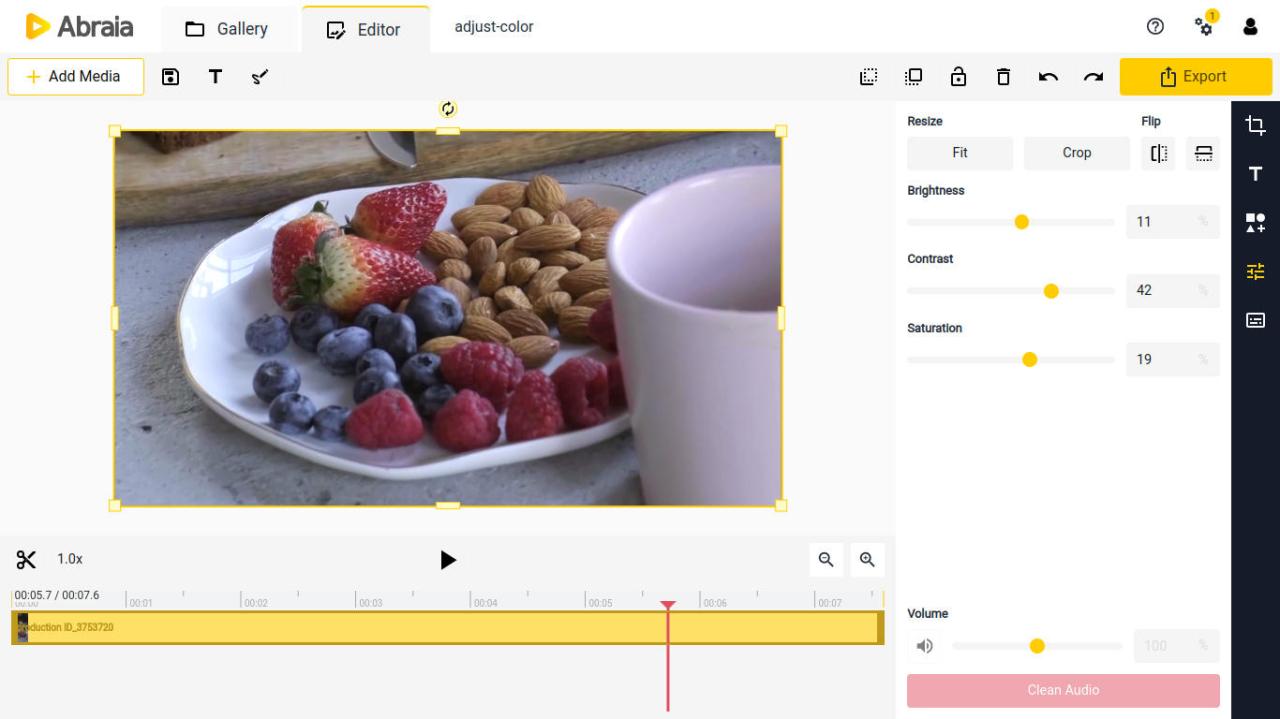
Color correction is a fundamental step in video editing, transforming raw footage into polished visuals. This process ensures your videos look their best by fixing any color imbalances or inconsistencies. Mastering the basics of color correction will significantly improve the overall quality and professionalism of your videos.
Color Correction vs. Color Grading
Understanding the distinction between color correction and color grading is crucial for effective video editing. These two processes, while related, serve different purposes.
Color Correction is the process of fixing technical issues with the color in your footage.
This involves correcting problems like improper white balance, exposure, and contrast.
Color Grading is the artistic process of enhancing the look and feel of your video.
This includes applying stylistic color palettes, adjusting the mood, and creating a specific aesthetic. Color grading builds upon the foundation laid by color correction.
Common Color Issues in Videos
Several common color issues can negatively impact the visual quality of your videos. Identifying and addressing these problems is a key aspect of color correction.
- Poor White Balance: This occurs when the colors in your video are not accurately represented due to the lighting conditions. For example, footage shot indoors under tungsten lights may appear overly orange. Correcting white balance involves adjusting the color temperature to neutralize these color casts, ensuring whites appear white and other colors are rendered accurately.
- Inconsistent Lighting: Variations in lighting throughout a video can create jarring shifts in color and exposure. This is especially common when shooting in different locations or at different times of the day. Color correction helps to smooth out these transitions, maintaining a consistent look and feel across the entire video. For example, a scene might start with natural daylight and then switch to a shot with harsher artificial light.
Color correction can balance these differences.
- Incorrect Exposure: Overexposed footage appears too bright, washing out colors and losing detail in highlights. Underexposed footage is too dark, obscuring detail in shadows. Adjusting exposure is essential for bringing out the full range of colors and details in your video.
- Color Casting: Unwanted color casts can be introduced by the environment or the camera settings. A green color cast might appear in footage shot under fluorescent lights, while a blue cast could result from shooting in overcast conditions. Color correction allows you to remove or neutralize these color casts, ensuring a more natural and accurate color representation.
Importance of a Properly Calibrated Monitor
A properly calibrated monitor is indispensable for accurate color correction. Without it, you might be making adjustments based on an inaccurate representation of the colors in your footage.
- Accurate Color Representation: A calibrated monitor displays colors accurately, allowing you to see the true colors of your footage. This is crucial for making informed decisions about color correction adjustments.
- Consistent Results: A calibrated monitor ensures that the colors you see on your screen are consistent across different viewing environments. This helps you achieve a consistent look for your video, regardless of where it is viewed.
- Avoid Color Casts and Other Issues: An uncalibrated monitor might introduce color casts or other visual distortions, leading you to make incorrect adjustments. A calibrated monitor minimizes these issues, allowing you to correct color problems effectively.
Choosing the Right Software
Choosing the right software is crucial for successful color correction. The tools you use can significantly impact the quality of your final product and your workflow efficiency. There’s a wide array of options available, ranging from free, entry-level programs to professional, paid software. Understanding the differences between these options is key to making an informed decision.
Popular Video Editing Software Options Suitable for Color Correction
Several video editing software packages are popular choices for color correction. These programs offer a range of features to enhance your video’s visual appeal.
- DaVinci Resolve: Widely considered the industry standard, DaVinci Resolve is a powerful and versatile option. It offers a free version with a comprehensive set of color correction tools, making it accessible to beginners. The paid version, DaVinci Resolve Studio, unlocks even more advanced features, such as noise reduction and advanced color grading capabilities. It’s used in Hollywood for its precision and control.
- Adobe Premiere Pro: A professional-grade editing software, Adobe Premiere Pro integrates seamlessly with other Adobe Creative Cloud applications. It offers robust color correction tools through its Lumetri Color panel, including color wheels, curves, and scopes. Premiere Pro is a subscription-based software, making it accessible on a monthly or annual basis.
- Final Cut Pro: Exclusively available for macOS users, Final Cut Pro is a powerful and intuitive video editing software. It includes a color correction panel with color wheels, curves, and scopes, as well as advanced features like color matching and secondary color correction. Final Cut Pro is a one-time purchase, providing a cost-effective option for Mac users.
- HitFilm Pro: HitFilm Pro is a hybrid video editing and visual effects software that includes comprehensive color correction tools. It provides a wide array of color grading options, including color wheels, curves, and LUT support. HitFilm Pro is a paid software option, but it offers a one-time purchase license.
- Filmora: Filmora is a user-friendly video editing software suitable for beginners and intermediate users. It offers a range of color correction presets, as well as basic color grading tools like color correction, white balance adjustment, and color grading tools. It is available as a subscription or a one-time purchase.
Free vs. Paid Software for Color Correction
The decision between free and paid software depends on your needs, budget, and experience level. Each type offers distinct advantages and disadvantages.
- Free Software: Free software, like the free version of DaVinci Resolve, provides an excellent starting point for color correction. They typically offer essential tools like color wheels, curves, and scopes. These programs are great for learning the basics and experimenting with different techniques. However, free software may have limitations, such as fewer advanced features, limited support, and potential watermarks on exported videos.
- Paid Software: Paid software, like Adobe Premiere Pro, Final Cut Pro, and the paid version of DaVinci Resolve, offers a more comprehensive feature set. These programs provide advanced color grading tools, such as secondary color correction, advanced scopes, and LUT support. Paid software often includes better performance, more extensive support, and the ability to handle complex projects. However, they come with a cost, which can be a significant factor for some users.
Comparison of Key Color Correction Features
The following table compares key color correction features of several popular software options. This comparison helps you evaluate the software options and select the one that best meets your requirements.
| Software | Color Wheels & Color Grading | Curves | Scopes | LUT Support |
|---|---|---|---|---|
| DaVinci Resolve (Free) | Yes | Yes | Yes | Yes |
| DaVinci Resolve Studio (Paid) | Yes | Yes | Yes | Yes |
| Adobe Premiere Pro | Yes | Yes | Yes | Yes |
| Final Cut Pro | Yes | Yes | Yes | Yes |
| HitFilm Pro | Yes | Yes | Yes | Yes |
| Filmora | Yes | Limited | Limited | Yes |
White Balance and Exposure Adjustments
Now that you understand the fundamentals of color correction and have selected your preferred software, let’s dive into the practical aspects of adjusting white balance and exposure. These two adjustments are crucial for achieving a professional look and ensuring your video’s colors are accurate and well-balanced. They’re often the first steps in any color correction workflow.
Achieving Natural-Looking Colors Through White Balance
White balance is essentially telling your video editing software what “white” looks like in your footage. Correct white balance ensures that colors appear natural and true to life. If the white balance is incorrect, your footage may have a color cast, such as a blue, orange, or green tint. This can make your video look unprofessional and distracting.To correct white balance effectively, consider these key aspects:
- Understanding Color Temperature: Color temperature is measured in Kelvin (K). It describes the warmth or coolness of light. Lower Kelvin values (e.g., 2700K) represent warmer, more yellow/orange light (like incandescent bulbs), while higher Kelvin values (e.g., 6500K) represent cooler, bluer light (like daylight).
- Using the White Balance Tool: Most video editing software provides a white balance tool, often with an eyedropper. This tool allows you to select a neutral gray or white object in your footage. The software then adjusts the color temperature and tint to make that object appear truly white, correcting the overall color cast.
- Adjusting Color Temperature and Tint Manually: If you don’t have a neutral object to sample, or if the automatic tool isn’t quite right, you can manually adjust the color temperature and tint sliders. Experiment with these controls until the colors look natural and balanced. Be mindful of the light source used during filming.
- Common White Balance Presets: Many cameras and editing programs offer white balance presets, such as “Daylight,” “Cloudy,” “Tungsten,” and “Fluorescent.” These presets are a good starting point, but they may not always be perfect. You’ll often need to fine-tune them.
Correcting Exposure Issues: Overexposure and Underexposure
Exposure refers to the amount of light that reaches the camera’s sensor. Proper exposure is essential for a well-lit video. Overexposure means the image is too bright, resulting in washed-out colors and loss of detail in the highlights (brightest areas). Underexposure means the image is too dark, leading to a lack of detail in the shadows (darkest areas) and a generally muddy appearance.To correct exposure issues effectively, consider these points:
- Understanding the Histogram: The histogram is a graph that visually represents the tonal range of your video. It’s a valuable tool for assessing exposure. The left side of the histogram represents shadows, the right side represents highlights, and the middle represents mid-tones. A well-exposed image will have a histogram that’s balanced across the range, without the data “clumping” too much at either end.
- Using Exposure Controls: Most video editing software offers exposure controls, such as:
- Exposure: Adjusts the overall brightness of the image.
- Highlights: Specifically targets the brightest areas of the image. Lowering this can recover detail in overexposed highlights.
- Shadows: Specifically targets the darkest areas of the image. Raising this can bring out detail in underexposed shadows.
- Whites: Adjusts the brightest parts of the image, often affecting the overall brightness.
- Blacks: Adjusts the darkest parts of the image, influencing the contrast.
- Contrast: Increases or decreases the difference between the lightest and darkest parts of the image.
- Clipping: Be aware of clipping, which occurs when the highlights or shadows are pushed beyond the sensor’s capabilities. In highlights, this means the brightest areas become pure white with no detail. In shadows, it means the darkest areas become pure black with no detail. Clipping is generally undesirable, so aim to avoid it.
Step-by-Step Procedure for Adjusting White Balance and Exposure
Here’s a general procedure for adjusting white balance and exposure in a video editing program:
- Import Your Footage: Begin by importing your video clips into your chosen video editing software.
- Apply Color Correction Effects: In your software’s effects panel, locate the color correction tools. These are often found under a “Color” or “Effects” category. Apply the necessary color correction effects to your video clip.
- White Balance Adjustment:
- Identify a Neutral Point: Look for a white or gray object in your footage. It could be a wall, a piece of paper, or a person’s shirt.
- Use the Eyedropper Tool (If Available): If your software has a white balance eyedropper tool, click on the neutral object in your footage. The software will attempt to automatically correct the white balance.
- Manual Adjustment: If the automatic adjustment isn’t perfect, use the color temperature and tint sliders to fine-tune the white balance until the colors look natural.
- Use Presets (If Necessary): Experiment with the white balance presets (e.g., “Daylight,” “Cloudy”) as a starting point.
- Exposure Adjustment:
- Analyze the Histogram: Examine the histogram to assess the exposure. Check if the highlights and shadows are clipped.
- Adjust Exposure Controls: Use the exposure, highlights, shadows, whites, blacks, and contrast sliders to adjust the exposure.
- If the image is overexposed, lower the exposure and/or highlights.
- If the image is underexposed, raise the exposure and/or shadows.
- Adjust the contrast to achieve the desired look.
- Monitor for Clipping: Pay close attention to the histogram as you make adjustments to avoid clipping.
- Apply to Other Clips: If your footage was shot under similar lighting conditions, you can often apply the same white balance and exposure settings to other clips. However, always review each clip individually to ensure the adjustments look correct.
- Fine-Tune and Refine: Once you’ve made the initial adjustments, fine-tune the settings to achieve the desired look and feel for your video. This might involve making small adjustments to the color temperature, tint, or exposure controls.
Color Correction Tools

Now that we’ve covered the basics of white balance, exposure, and choosing the right software, it’s time to dive into the heart of color correction: the tools themselves. Primary color correction is where you’ll spend most of your time, making global adjustments to the overall look and feel of your video. These tools affect the entire image, setting the foundation for any secondary adjustments you might make later.
Let’s explore the key instruments in your color correction toolkit.
Color Wheels
Color wheels are intuitive tools for adjusting the overall color balance of your video. They’re usually represented as a circular interface, with different color hues arranged around the wheel. Think of them as a simplified representation of the color spectrum.Color wheels are typically divided into three sections: shadows (lift), midtones (gamma), and highlights (gain). Moving the cursor towards a specific color within each section will introduce that color to the corresponding tonal range.
For example, moving the shadows color wheel towards blue will add a blue tint to the darker areas of your video.
RGB Curves
RGB curves provide a more precise and nuanced approach to color control. They allow you to independently adjust the red, green, and blue color channels, offering granular control over the color in your footage. The curves interface typically displays a graph where the horizontal axis represents the input value (the original color in your video) and the vertical axis represents the output value (the color after adjustment).By manipulating the curve, you can change how each color channel responds to different input values.
For instance, by creating an “S-curve” on the red channel, you can increase the reds in the highlights and decrease them in the shadows, creating a more vibrant and punchy look. This level of control allows for very subtle and specific color grading adjustments.
Primary Color Correction Tools Explained
Here’s a breakdown of the key primary color correction tools, often found within color wheels or as individual sliders, and their purpose:
- Lift: Affects the shadows or the darkest parts of your image. Adjusting lift adds or removes color from the shadows, influencing the overall mood and contrast. Moving the lift control towards a specific color, like blue, will tint the shadows blue.
- Gamma: Controls the midtones or the middle range of brightness in your image. Adjusting gamma primarily impacts the overall brightness and contrast of the scene. Increasing gamma brightens the midtones, while decreasing it darkens them.
- Gain: Influences the highlights or the brightest parts of your image. Gain adjustments add or remove color from the highlights, impacting the overall brightness and the appearance of bright areas. Moving the gain control towards red will tint the highlights red.
- Exposure: Alters the overall brightness of the image. This is a global adjustment, similar to the exposure setting in a camera. Increasing exposure brightens the entire image, while decreasing it darkens the entire image.
- Contrast: Modifies the difference between the lightest and darkest areas of the image. Increasing contrast makes the image more dynamic, while decreasing contrast flattens the image.
- Saturation: Controls the intensity or purity of the colors in your image. Increasing saturation makes colors more vibrant, while decreasing saturation desaturates the image, eventually leading to a grayscale appearance.
- Hue: Adjusts the specific color. This tool is useful for making very specific changes to the colors in your video.
Color Correction Tools
Color correction is a crucial process that elevates your video from amateur to professional. While basic adjustments like white balance and exposure are essential, the real artistry comes with advanced tools that allow for precise control over specific colors and areas within your footage. This section delves into these advanced tools, equipping you with the knowledge to fine-tune your videos and achieve a polished, cinematic look.
Secondary Color Correction
Secondary color correction provides a way to isolate and manipulate specific colors or areas within your video. This allows for targeted adjustments that can significantly enhance the visual appeal of your footage. This approach moves beyond global adjustments, offering precision and control over individual color elements.Color isolation and masking are fundamental techniques in secondary color correction. They enable you to select specific colors or areas within your video frame and apply adjustments only to those selected portions.
This is achieved through the use of color isolations, which are selections based on color values, and masks, which define the area affected by the adjustments.
- Color Isolations: Color isolations work by identifying and selecting pixels based on their color properties. You typically use tools that allow you to sample a specific color in your footage, and the software then selects all pixels within a certain range of that color. This is very useful for correcting skin tones, adjusting the color of a specific object, or isolating a sky to enhance its appearance.
- Masks: Masks define the area where the color adjustments will be applied. They can be created using various methods, including shape masks (circles, squares, etc.), or by drawing freehand around an object. Masks ensure that your adjustments are confined to the intended area, preventing unintended changes to other parts of the video.
Hue, Saturation, and Luminance (HSL) controls are the primary tools used to manipulate color within the selected areas. These controls give you precise control over how the isolated colors appear in your video. Understanding how to use these controls effectively is key to achieving your desired look.
- Hue: Hue refers to the actual color, such as red, green, blue, etc. Adjusting the hue shifts the color towards another color on the color wheel. For example, you could shift a green object towards a yellow-green or a blue-green.
- Saturation: Saturation refers to the intensity or purity of a color. Increasing saturation makes a color more vibrant, while decreasing saturation makes it more muted or desaturated, moving toward grayscale.
- Luminance: Luminance refers to the brightness or lightness of a color. Adjusting luminance changes how bright or dark a color appears. This is also known as the luma value.
Let’s look at some examples of how to isolate specific colors for adjustment using masks.
- Example 1: Adjusting a Sky: Suppose your footage has a slightly washed-out sky.
To fix this, you would:- Use a color isolation tool to select the blue tones in the sky.
- Create a mask to isolate the sky area. This could be done using a shape mask, or drawing a mask around the sky.
- Increase the saturation of the blue hues to make the sky more vibrant. You could also adjust the luminance to make the sky appear deeper and more dramatic.
The result would be a sky that is more visually appealing and contributes to a more professional look.
- Example 2: Correcting Skin Tones: Skin tones are often the focal point of a shot, so correcting them is vital.
To correct skin tones, you would:- Use a color isolation tool, often a “skin tone selector,” to select the range of colors representing skin tones.
- Create a mask around the subject’s face and body to isolate the skin.
- Adjust the hue to correct any color casts (e.g., removing a green or red tint). Adjust the saturation to achieve a natural skin tone, avoiding over-saturation. Finally, adjust the luminance to balance the brightness of the skin with the rest of the scene.
The resulting image would have more natural and pleasing skin tones, which greatly enhances the video’s overall professionalism.
- Example 3: Changing the Color of an Object: Imagine a scene where you want to change the color of a car from red to blue.
To do this, you would:- Use a color isolation tool to select the red color of the car.
- Create a mask to isolate the car, ensuring that the adjustments only affect the car and not other objects in the scene.
- Adjust the hue slider to shift the color from red towards blue. You can also adjust the saturation and luminance to fine-tune the appearance of the new color.
This example demonstrates the power of secondary color correction in creating dramatic and creative visual effects.
Practical Workflow and Best Practices
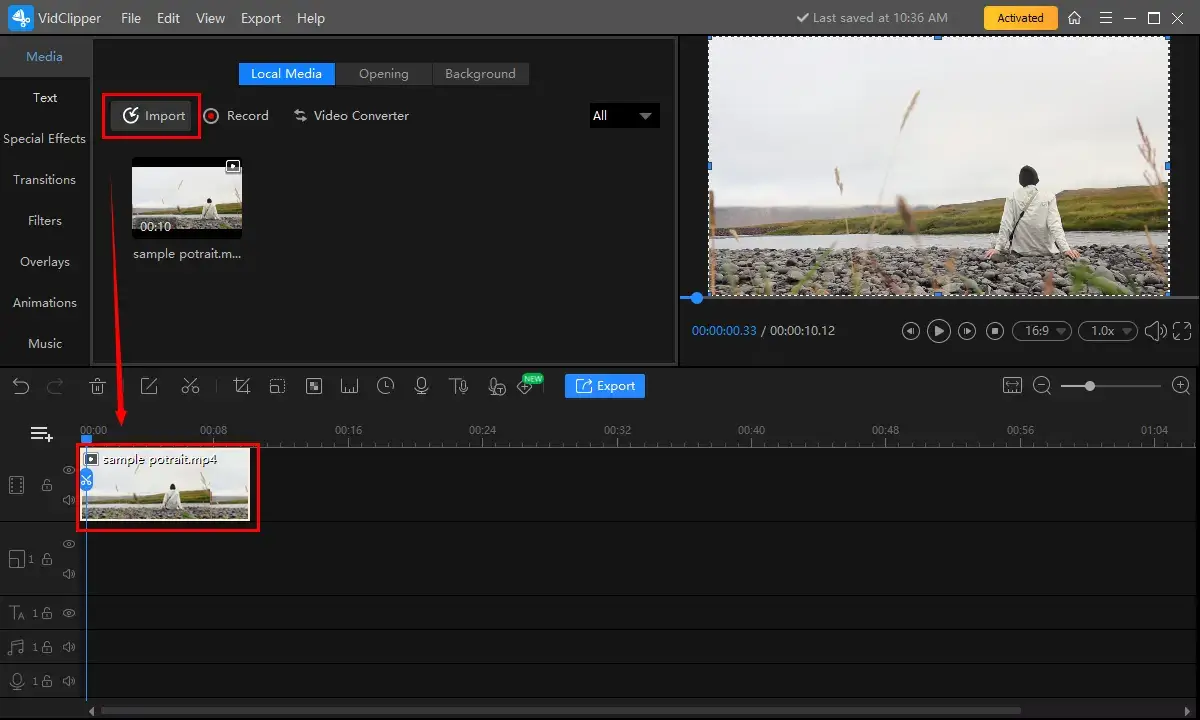
Color correction is a crucial step in video editing, transforming raw footage into visually appealing and professional-looking content. Mastering a solid workflow and understanding best practices can significantly enhance the quality of your videos and streamline your editing process. Let’s explore a practical approach to color correction and how to avoid common pitfalls.
Organizing a Typical Color Correction Workflow
A well-defined workflow ensures consistency and efficiency. It typically involves a series of steps, from initial assessment to final adjustments. Following this structured approach allows for a systematic and controlled color correction process.
- Initial Assessment: Begin by reviewing the entire video. Identify any specific issues, such as white balance problems, exposure inconsistencies, or color casts. This is your opportunity to determine the overall look and feel you want to achieve. Pay close attention to the mood you want to convey.
- White Balance Adjustment: Correct the white balance to ensure accurate color representation. Use the white balance eyedropper tool to sample a neutral gray or white area in the frame. If the white balance is off, colors can appear skewed, such as skin tones appearing overly red or blue.
- Exposure and Contrast Adjustments: Fine-tune the overall exposure and contrast to achieve the desired brightness and dynamic range. Use tools like the exposure slider, contrast slider, and highlights/shadows adjustments. This step ensures the video is properly exposed and that details are visible in both the highlights and shadows.
- Color Correction: Apply primary color correction to adjust the overall color balance and saturation. Use color wheels, curves, and other color grading tools to modify the hues, saturation, and luminance of the video. This stage is crucial for creating a cohesive look.
- Secondary Color Correction (Optional): Target specific colors or areas in the video for more precise adjustments. For example, you might want to make a green shirt more vibrant or adjust the skin tones to appear more natural. This often involves using masks or keying to isolate certain elements.
- Look Application (or Color Grading): Apply a “look” or color grade to establish the desired aesthetic. This could involve using a preset, creating a custom look, or emulating a specific film style.
- Final Review and Refinement: Watch the video in its entirety and make any final adjustments to ensure consistency and achieve the desired look. Pay attention to how the colors and tones appear throughout the entire video.
Tips for Avoiding Common Color Correction Mistakes
Avoiding common mistakes can save time and improve the quality of your videos. Being aware of these pitfalls allows for a more efficient and effective color correction process.
- Rushing the Process: Color correction takes time. Avoid rushing the process, as this can lead to inaccurate results. Take breaks and revisit your work with fresh eyes.
- Over-Correcting: Avoid making excessive adjustments. Subtle changes often yield the best results. Over-correction can lead to unnatural-looking colors and loss of detail.
- Ignoring White Balance: Failing to correct white balance can result in inaccurate colors and an unprofessional appearance. Always address white balance issues early in the process.
- Neglecting Exposure: Improper exposure can make the video look too dark or too bright. Pay close attention to exposure and ensure that details are visible in both the highlights and shadows.
- Using Too Many Effects: Avoid applying too many effects or filters. A clean and well-balanced color grade is usually more effective than an overly stylized one.
- Working in a Poorly Calibrated Environment: Ensure your monitor is properly calibrated to accurately display colors. Working on an uncalibrated monitor can lead to inaccurate color judgments.
Demonstrating the Application of a ‘Look’ or ‘Preset’ to a Video and Customization
Applying a “look” or “preset” is a quick way to achieve a specific aesthetic. However, it’s important to customize the look to fit your footage. Let’s illustrate this with an example.Let’s imagine a scene featuring a person in a park on a sunny day. We’ll apply a “Warm Sunset” preset to the video. This preset likely increases the warmth of the colors, boosting reds and oranges.
- Applying the Preset: In your video editing software, locate the preset (or LUT, Look-Up Table) called “Warm Sunset” and apply it to the clip. Initially, the video might look too saturated or the skin tones may appear overly orange.
- Customizing the Preset: To refine the look, begin by adjusting the overall intensity of the preset. Reduce the opacity of the applied look if it’s too strong. Then, move on to the specific color correction tools to fine-tune the result.
- Adjusting White Balance: Even with a preset, you might need to correct the white balance. If the skin tones are still too warm, use the white balance tools to cool them down slightly.
- Modifying Exposure and Contrast: If the preset has altered the exposure or contrast, adjust these settings to bring the video back to the desired brightness and dynamic range.
- Fine-Tuning Color: Use the color wheels or curves to subtly adjust the reds, oranges, and yellows. This is crucial to achieving the correct skin tones. You might need to pull down the red levels slightly to avoid an overly red complexion.
- Creating a Custom Look: After making these adjustments, you’ve effectively customized the preset to fit your specific footage. You can save this modified setting as a new preset or look, making it available for future projects.
By following these steps, you can quickly and effectively apply a “look” or preset while maintaining the ability to customize it to suit your footage. The key is to use the preset as a starting point and then make targeted adjustments to achieve the desired aesthetic.
Specific Color Correction Scenarios
Color correction is not a one-size-fits-all process. The ideal approach varies depending on the lighting conditions of your footage, the subjects within the frame, and the overall aesthetic you’re aiming for. This section will delve into specific scenarios to equip you with the knowledge to handle diverse color correction challenges effectively.
Color Correcting Footage in Different Lighting Conditions
Different lighting scenarios demand different color correction strategies. Understanding how light interacts with your camera sensor is key to achieving professional-looking results.
- Daylight: Footage shot in daylight typically benefits from a natural and balanced look.
-
- White Balance: Ensure accurate white balance to neutralize any color casts. Daylight white balance settings (around 5600K) often work well.
- Exposure: Check for overexposure (blown-out highlights) or underexposure (crushed shadows). Adjust the exposure slider to balance the highlights and shadows.
- Contrast: Fine-tune the contrast to add depth and definition. Be cautious not to overdo it, as it can lead to unnatural results.
- Saturation: Increase saturation subtly to enhance colors. Avoid excessive saturation, which can make the footage look artificial.
- Indoor Lighting: Indoor lighting presents unique challenges due to the presence of artificial light sources.
-
- White Balance: Indoor lighting often has a warmer color temperature (e.g., tungsten bulbs at 3200K). Adjust the white balance to counteract the color cast.
- Color Temperature: Experiment with the color temperature slider to neutralize the color cast or to create a specific mood (e.g., a warmer tone for a cozy feel).
- Tint: Use the tint control to fine-tune the color balance and eliminate any unwanted color casts, like green from fluorescent lights.
- Noise Reduction: Indoor footage may have more noise due to lower light levels. Apply noise reduction selectively to minimize visual distractions.
- Mixed Lighting: When shooting in environments with a mix of daylight and artificial light, you need to find a balance.
-
- Prioritize the dominant light source: Decide which light source you want to emphasize or neutralize.
- Use split toning: Apply different color grades to the highlights and shadows to create a more stylized look.
- Masking: Utilize masking tools to isolate areas of the frame and apply different color corrections to specific elements, such as windows or light fixtures.
Color Correcting Skin Tones in a Variety of Ethnic Backgrounds
Skin tone correction is a crucial aspect of color grading, as it significantly impacts the overall look and feel of your video. The approach varies depending on the subject’s ethnic background.
- Fair Skin Tones:
-
- Focus on subtle adjustments: Fair skin tones are often sensitive to over-correction.
- Reduce red: Overly reddish skin can look unnatural. Reduce the red channel slightly.
- Enhance blues and greens: Adding a touch of blue or green can balance the skin tones.
- Softness: Add a touch of softness to the skin, which can be achieved through techniques such as blurring.
- Medium Skin Tones:
-
- Balance the warmth: These tones generally benefit from balanced warmth.
- Adjust the luminance: Adjust the luminance of the skin tones to add depth and dimension.
- Subtle saturation: Slightly increase the saturation of skin tones to enhance their natural color.
- Contrast: Increase contrast slightly to create depth.
- Dark Skin Tones:
-
- Focus on preserving detail: Dark skin tones can lose detail in the shadows.
- Lift the shadows: Lift the shadows to reveal more detail.
- Reduce the overall contrast: Overly high contrast can flatten dark skin tones.
- Saturation: Increase saturation with caution to avoid an unnatural look.
- General Guidelines:
-
- Use vectorscopes and waveforms: Use these tools to monitor the color and luminance values of the skin tones.
- Reference images: Use reference images or footage of the desired skin tone to guide your color correction.
- Be subtle: Always err on the side of subtlety. Small adjustments often yield the best results.
Addressing Color Casts Caused by Various Light Sources
Color casts, unwanted tints caused by the color of the light source, can ruin the look of your footage. Understanding how to identify and correct these casts is essential.
- Tungsten Lights: These lights emit a warm, orange-yellow color.
-
- White Balance: Adjust the white balance towards the blue end of the spectrum (e.g., 3200K) to neutralize the color cast.
- Color Temperature: Reduce the color temperature to cool down the image.
- Tint: Fine-tune the tint control to eliminate any remaining color casts.
- Fluorescent Lights: These lights can produce a greenish or bluish cast.
-
- White Balance: Adjust the white balance towards the magenta end of the spectrum.
- Tint: Use the tint control to correct the green cast.
- Color Correction Tools: Use selective color correction tools to target the green and yellow areas.
- LED Lights: The color cast from LED lights can vary depending on the quality of the light.
-
- White Balance: Experiment with white balance settings to find the optimal balance.
- Color Temperature: Adjust the color temperature to correct the cast.
- Hue vs. Hue Curves: Use hue vs. hue curves to make fine adjustments to specific colors.
- Sunlight: Sunlight can produce a warm or cool cast, depending on the time of day.
-
- White Balance: Adjust the white balance to compensate for the warmth or coolness.
- Color Temperature: Use the color temperature slider to cool down or warm up the image.
- Exposure: Ensure that the exposure is correct to avoid blown-out highlights or crushed shadows.
Illustrative Examples

Color correction transforms the visual narrative of your videos. By showcasing “before and after” examples, we can directly observe the impact of these techniques. This section provides concrete demonstrations of how color correction elevates the visual quality of your footage, making it more professional and engaging.
Impact of Color Correction on Visual Quality
Color correction refines the aesthetic appeal of video content by addressing a variety of visual shortcomings present in the raw footage. These adjustments not only enhance the overall look but also help to convey the intended mood and atmosphere of a scene more effectively.
- Correcting Color Casts: Footage often suffers from unwanted color casts, which can make the image appear overly warm, cool, or tinted. Color correction tools neutralize these imbalances, ensuring colors appear natural and true. For instance, a video shot indoors under fluorescent lighting might have a green tint. Color correction can remove this green cast, revealing accurate skin tones and neutral colors.
- Improving Exposure and Contrast: Many raw videos lack proper exposure or have poor contrast, making the image appear flat or washed out. Color correction allows for adjusting brightness, shadows, highlights, and contrast to create a more dynamic and visually appealing image. Increasing contrast can make details pop, while adjusting shadows can reveal hidden information in darker areas.
- Enhancing Color Vibrancy and Saturation: Color correction can boost the vibrancy and saturation of colors, making them appear more vivid and engaging. However, it’s crucial to avoid over-saturation, which can make the image look unnatural. Subtle adjustments can enhance the overall visual impact without sacrificing realism.
- Creating a Consistent Look: When working with multiple clips, color correction helps create a consistent visual style throughout the entire video. By matching the color profiles of different shots, you can ensure a cohesive and professional appearance.
The core difference after color correction can be summarized as:
- Before: Dull, flat image, with potential color casts, poor exposure, and low contrast.
- After: Vibrant, balanced image with accurate colors, improved exposure, enhanced contrast, and a consistent visual style.
Exporting Your Corrected Video
Now that you’ve meticulously color-corrected your video, the final step is exporting it. This is where all your hard work comes together, and choosing the right settings is crucial to ensure your video looks its best across different platforms. Incorrect export settings can lead to a loss of quality, unwanted compression artifacts, and ultimately, a less professional-looking final product.
Choosing the Right Export Settings
Selecting the appropriate export settings is essential to preserve the quality of your color-corrected video and optimize it for the intended platform. Consider factors like resolution, frame rate, codec, bitrate, and audio settings. The goal is to balance file size with visual fidelity, ensuring your video looks sharp and vibrant without being unnecessarily large.
Recommended Settings for Different Platforms
Different platforms have specific requirements for video uploads. Here’s a breakdown of recommended settings for popular video-sharing sites:
- YouTube: YouTube supports a wide range of formats, but it’s generally recommended to upload in the highest possible quality.
- Container: MP4 is generally preferred.
- Video Codec: H.264 is the standard.
- Resolution: Upload at the original resolution (e.g., 1080p, 4K) to allow viewers to choose their preferred quality.
- Frame Rate: Match your original footage’s frame rate (e.g., 24fps, 30fps, 60fps).
- Bitrate: Higher bitrates result in better quality. YouTube recommends the following:
- 1080p: 8 Mbps (general) to 16 Mbps (high frame rate)
- 4K: 35 Mbps to 56 Mbps (high frame rate)
- Audio Codec: AAC-LC
- Audio Bitrate: 128kbps (mono) to 384kbps (stereo)
- Vimeo: Vimeo is known for its high-quality playback. They provide specific recommendations.
- Container: MP4 is preferred.
- Video Codec: H.264.
- Resolution: Upload at the highest resolution possible.
- Frame Rate: Match your original footage’s frame rate.
- Bitrate: Vimeo will automatically re-encode your video. Upload with a high bitrate to give them the best source material. Generally aim for bitrates similar to YouTube’s recommendations.
- Audio Codec: AAC-LC
- Audio Bitrate: 320 kbps
- Instagram: Instagram has more stringent requirements due to its mobile-first focus.
- Container: MP4 is recommended.
- Video Codec: H.264.
- Resolution: 1080p is generally recommended.
- Frame Rate: 30fps is ideal.
- Bitrate: Aim for a bitrate that balances quality and file size. A good starting point is around 5-10 Mbps.
- Audio Codec: AAC
- Audio Bitrate: 128 kbps
Checklist for Optimal Video Quality Upon Export
Before exporting your video, review this checklist to ensure the best possible quality:
- Resolution: Export at your original resolution or a higher resolution if possible. This allows for flexibility when the video is viewed on different devices.
- Frame Rate: Match your original footage’s frame rate.
- Codec: Choose a widely supported codec like H.264.
- Bitrate: Select a bitrate appropriate for the platform and resolution. Higher bitrates generally result in better quality, but they also increase file size.
- Audio Settings: Ensure your audio codec and bitrate are appropriate for the platform.
- Color Space: Confirm that your color space is correctly set. Most platforms accept sRGB.
- File Size: Be mindful of file size limitations imposed by the platform.
- Test Export: Before exporting the final version, create a short test export with your chosen settings and upload it to the platform to check the quality.
Closing Summary
In summary, mastering color correction empowers you to shape the visual narrative of your videos, transforming raw footage into captivating stories. We’ve covered the core principles, from understanding the basics to implementing advanced techniques, equipping you with the tools to achieve professional-quality results. Remember, practice is key. Experiment with the tools, explore different scenarios, and embrace the power of color to unlock the full potential of your video content.