Mastering the art of seamless content creation is crucial for captivating your audience. This guide, “How to Cut Out Mistakes and Pauses Seamlessly,” dives into the techniques needed to transform your audio and video projects from amateur to professional. Whether you’re recording a podcast, creating video tutorials, or giving presentations, eliminating errors and pauses is key to a polished and engaging final product.
We’ll explore every aspect, from identifying common mistakes and planning your content for smooth delivery to utilizing powerful editing tools and advanced techniques for maintaining authenticity. Learn how to refine your content, maintain a natural flow, and create a truly captivating experience for your viewers or listeners.
Identifying Mistakes and Pauses
Finding and marking errors and hesitations is the initial, crucial step in editing any spoken content. It’s like the detective work before the cleanup. Effective identification saves time and leads to a smoother, more professional final product. The goal is to pinpoint exactly where the content stumbles, allowing for precise editing.
Methods for Identifying Common Mistakes
Identifying mistakes involves active listening and careful review. Several methods can quickly reveal common errors.
- Listening with Intent: The first pass should be dedicated solely to listening. Focus on the overall flow and content. Are there any confusing points, unclear statements, or sudden changes in tone? This initial assessment helps identify the most significant areas needing attention.
- Content Accuracy Check: Compare the spoken words with any prepared script or reference material. This is particularly important for factual content, presentations, or tutorials. Look for factual errors, incorrect names, dates, or figures. Even a small error can undermine credibility.
- Pronunciation and Grammar Review: Pay close attention to pronunciation errors, grammatical mistakes, and awkward phrasing. These can distract the listener and detract from the message. Use a grammar checker if needed, but always listen to ensure the edits sound natural.
- Self-Critique and Perspective: Listen as if you were the audience. Does the content make sense? Is it engaging? Are there parts that feel rushed or unclear? Consider the intended audience and their level of understanding.
- Feedback Integration: If possible, ask someone else to listen and provide feedback. A fresh pair of ears can often catch mistakes that you’ve become accustomed to. Take their comments seriously, even if you don’t agree with all of them.
Techniques for Pinpointing Pauses
Pauses, while sometimes necessary for emphasis, can disrupt the flow if used excessively or in the wrong places. Recognizing the types of pauses is key to editing them effectively.
- Filler Words: These are the most common offenders. Words like “um,” “ah,” “like,” “so,” “you know,” and “basically” serve no real purpose and often signal a speaker is searching for their next thought.
- Silent Gaps: These are periods of silence, which can range from a fraction of a second to several seconds. Short silences can be natural, but longer ones can feel awkward or make the speaker appear hesitant.
- False Starts and Stutters: These include starting a sentence and then stopping abruptly, or repeating words or sounds. These disruptions can make the speaker sound unsure or unprepared.
- Sentence Fragments and Run-on Sentences: Incomplete thoughts (fragments) or overly long sentences (run-ons) can be difficult for the listener to follow.
- Tone and Pace Variations: Sudden changes in tone or speed can also be considered pauses. For example, speaking too quickly or slowing down significantly can be disruptive.
Visual Representation of Mistakes and Pauses
Visual aids can be extremely helpful when reviewing and editing audio or video content. They make it easier to see the problems and plan the edits.
- Timeline Marking: Use the audio or video editing software’s timeline to mark mistakes and pauses.
- Color Coding: Assign different colors to different types of mistakes and pauses. For example:
- Red: Filler words
- Yellow: Silent gaps
- Blue: Pronunciation errors
- Markers and Comments: Place markers at the beginning and end of each error or pause. Add comments to the markers describing the specific issue. For example: “Um at 0:15 – remove” or “Silent gap at 1:30 – shorten”.
- Transcription Review: Some editing software offers the option to view a transcription alongside the timeline. This allows you to easily identify mistakes by reading the text. You can highlight or annotate the transcription to indicate errors.
- Spreadsheet Logging: For larger projects, consider using a spreadsheet to log all mistakes and pauses. Include columns for the timestamp, the type of error, a brief description, and the proposed edit. This provides a comprehensive overview and makes it easier to track progress.
Pre-Production Planning for Smooth Delivery
Careful planning before you even hit the record button is crucial for minimizing mistakes and pauses in your audio or video content. A well-structured pre-production phase allows you to anticipate potential issues, rehearse effectively, and manage any pre-performance jitters. This section focuses on actionable strategies to set you up for a smooth and confident delivery.
Designing a Checklist to Prepare Script or Talking Points
Creating a checklist is an excellent way to ensure you’ve covered all your bases before you begin recording. This systematic approach helps prevent overlooking crucial details and contributes to a more polished final product.
- Content Artikel: Before writing anything, create a clear Artikel of your content. This should include the main points you want to cover, in a logical order. Think of it as a roadmap for your presentation.
- Script or Talking Points Development: Decide whether you’ll use a full script or just talking points. If using a script, write it out completely. If using talking points, create concise bullet points for each key idea. Consider the audience and adjust the language accordingly.
- Identification: Identify s and phrases that will help you stay on track and avoid rambling. Underline or highlight these in your script or talking points.
- Visual Aids Preparation (if applicable): If you’re using visuals, prepare them in advance. Make sure they complement your content and are easy to understand.
- Practice Run-Through: Conduct at least one full run-through of your script or talking points. This helps you identify any areas that need improvement.
- Time Estimation: Time yourself during your practice run-through to ensure you’re within the desired time frame. Adjust the script or talking points as needed.
- Equipment Check: Verify that all your equipment (microphone, camera, etc.) is working correctly before you start recording.
- Environment Setup: Choose a quiet and well-lit recording environment. Minimize distractions.
Creating Strategies to Rehearse Content Effectively
Rehearsing your content is essential for familiarizing yourself with the material and building confidence. Effective rehearsal techniques can significantly reduce the number of errors and pauses.
- Read Aloud: The simplest and most effective method is to read your script or talking points aloud. This helps you identify awkward phrasing and areas where you might stumble.
- Record Yourself: Record yourself reading the script or delivering your talking points. Listen back to identify areas for improvement in your pacing, tone, and clarity.
- Practice in Front of a Mirror: This helps you become more comfortable with your delivery and allows you to observe your body language.
- Use a Teleprompter (optional): If you’re comfortable with technology, using a teleprompter can help you maintain eye contact while reading your script.
- Practice with a Friend or Colleague: Ask a friend or colleague to listen to your practice run and provide feedback. This can help you identify areas where your content is unclear or confusing.
- Vary Your Practice Sessions: Don’t just rehearse the same way every time. Try different approaches, such as practicing in front of a mirror, recording yourself, or practicing in a different environment.
- Focus on Key Phrases and Transitions: Pay special attention to the phrases and transitions between ideas. These are often the areas where people stumble.
Techniques for Managing Nervousness or Stage Fright
Nervousness is a common experience when presenting or recording. Learning how to manage these feelings is crucial for delivering a smooth and confident performance.
- Deep Breathing Exercises: Before you start, take a few deep breaths. Inhale slowly through your nose, hold for a few seconds, and exhale slowly through your mouth. This can help calm your nerves.
- Visualization: Visualize yourself delivering a successful presentation or recording. Imagine yourself speaking clearly and confidently.
- Positive Self-Talk: Replace negative thoughts with positive affirmations. Remind yourself of your strengths and abilities.
- Physical Activity: If possible, engage in some light physical activity before your presentation or recording. This can help release tension.
- Preparation is Key: The more prepared you are, the more confident you will feel. Make sure you have thoroughly rehearsed your content and are familiar with your equipment.
- Accept Imperfection: It’s okay to make mistakes. Everyone does. Don’t let a minor error derail your performance.
- Focus on Your Message: Concentrate on the content you’re delivering, rather than on your nervousness. This can help you stay focused and reduce anxiety.
Editing Techniques for Removing Mistakes
Removing mistakes and pauses is crucial for creating polished and professional audio content. It’s the difference between a recording that sounds amateurish and one that engages listeners. Effective editing enhances clarity, maintains audience attention, and significantly improves the overall impact of your message. Mastering these techniques will transform your raw recordings into compelling audio experiences.
Removing Filler Words
Filler words like “um,” “ah,” “like,” and “you know” can distract listeners and diminish the impact of your speech. Here’s a step-by-step guide on using audio editing software to eliminate them.Audio editing software uses several tools for this process.
- Import Your Audio: Begin by importing your audio file into your chosen editing software. Most programs support a wide range of audio formats (e.g., MP3, WAV, FLAC).
- Visual Inspection: Zoom in on the waveform to visually identify the filler words. Filler words often create small, irregular waveforms that are easily distinguishable from the rest of the speech.
- Selection and Deletion: Use the selection tool to highlight the filler word or phrase. Once selected, press the “delete” key or use the “cut” function to remove it.
- Gap Management: After deleting a filler word, a gap will remain. Most software automatically closes the gap, seamlessly connecting the surrounding audio. However, listen carefully to ensure the transition sounds natural.
- Crossfading (Optional): For a smoother transition, consider using a crossfade. This involves slightly overlapping the audio segments on either side of the deletion, creating a gradual transition. Most software has this feature.
- Review and Refinement: Playback the edited section to ensure the removal of filler words is seamless and the audio flows naturally. Repeat steps 3-5 as needed to remove additional filler words.
- Export Your Audio: Once you are satisfied with the edits, export the audio file in your desired format.
Shortening or Eliminating Silent Pauses
Silent pauses can disrupt the flow of your audio, but removing them improperly can make your content sound choppy. Here’s how to shorten or eliminate silent pauses effectively.
There are several methods for managing silent pauses effectively.
- Identify Pauses: Just like with filler words, zoom in on the waveform to visually identify the silent pauses. Longer pauses are more noticeable, while shorter pauses may be acceptable.
- Shortening Pauses: For shorter pauses, you can simply reduce their length. Select the pause and drag the edge of the selection inward to shorten it. Listen carefully to ensure the transition sounds natural.
- Eliminating Pauses: For longer pauses, you may choose to eliminate them entirely. Select the pause and delete it, allowing the software to automatically close the gap.
- Consider Context: Pay attention to the context of the speech. Pauses can be natural and even necessary for emphasis. Don’t eliminate all pauses; instead, focus on removing those that feel unnatural or disrupt the flow.
- Use a Noise Gate (Optional): Some software offers a noise gate feature that can automatically reduce or eliminate silence below a certain threshold. This can be helpful for automatically removing background noise and shortening pauses. However, be careful not to set the threshold too high, as it can clip the beginning or end of words.
- Maintain Natural Rhythm: The goal is to maintain a natural rhythm. Avoid making the audio sound rushed or unnatural. Adjust the length of pauses carefully to create a balanced and engaging listening experience.
Software Guide for Removing Mistakes and Pauses
Choosing the right audio editing software can significantly impact your workflow. Here’s a comparison of popular options, considering features, ease of use, and cost.
Several software options are available for editing audio, each with its strengths and weaknesses. The best choice depends on your specific needs and budget.
| Software | Features | Ease of Use | Cost | Common Issues and Solutions |
|---|---|---|---|---|
| Audacity | Multi-track editing, noise reduction, effects, VST support | Beginner-friendly, open-source | Free | Common Issue: Can be resource-intensive for large projects. Solution: Optimize project settings and consider using a more powerful computer. |
| Adobe Audition | Advanced editing, multi-track mixing, noise reduction, spectral editing | Moderate learning curve, professional features | Subscription-based (Creative Cloud) | Common Issue: Steep learning curve for beginners. Solution: Utilize online tutorials and documentation to learn the features. |
| GarageBand (macOS) | Multi-track editing, effects, loops, music creation | Easy to use, beginner-friendly | Free (comes with macOS) | Common Issue: Limited advanced features compared to professional software. Solution: If possible, use it as a stepping stone to learn more advanced software later. |
| Descript | Transcription-based editing, AI-powered features, collaboration tools | Very easy to use, intuitive interface | Subscription-based | Common Issue: Transcription accuracy can vary depending on audio quality and accents. Solution: Always proofread and correct the transcription before editing. |
This table provides a snapshot of popular audio editing software options. Consider your specific needs and budget when making your choice.
Seamless Transitions and Continuity
Maintaining seamless transitions and continuity is crucial for creating professional-quality audio and video content. It ensures the audience remains engaged and doesn’t get pulled out of the experience by jarring edits or noticeable breaks. Effective transitions help guide the viewer or listener through the content, making it flow naturally and easily understandable.
Strategies for Smooth Transitions
Creating smooth transitions involves several techniques to connect different segments of your audio or video content seamlessly. This ensures the content maintains a natural flow and keeps the audience engaged.
- Audio Crossfades: Implementing crossfades, where the audio from one segment gradually fades out while the audio from the next segment fades in, is a fundamental technique. This is particularly effective for removing short pauses or mistakes. For example, a 1-second crossfade can smoothly transition between two sentences, eliminating a brief hesitation.
- Video Dissolves: Similar to audio crossfades, video dissolves involve one clip gradually fading into another. This creates a soft transition that is less abrupt than a hard cut. Consider using a dissolve of approximately 0.5 to 1 second to transition between scenes in a video.
- L-Cuts and J-Cuts: These techniques involve manipulating the audio and video tracks independently. An L-cut involves the video cutting at a certain point while the audio from the previous clip continues, creating a smooth overlap. A J-cut does the opposite, where the audio from the next clip starts before the video cut. These are great for removing pauses or stutters while maintaining a natural flow of speech.
For instance, use a J-cut to introduce a new topic by having the audio of the speaker start before the video clip showing them.
- Matching Action/Visuals: Aligning the cut points with actions or visual elements within the content can create a seamless transition. For example, a cut can be made during a camera pan or a movement in the scene, making the transition less noticeable. If a person is walking from left to right in one shot, the next shot could continue that movement.
- Using B-Roll: Incorporating B-roll footage (supplementary footage) can help cover up abrupt transitions. You can cut to B-roll during a pause or mistake, and then return to the main footage, making the edit less obvious. If a speaker stumbles over a word, insert B-roll footage showing the subject matter, then cut back to the speaker.
Methods to Edit Out Mistakes and Pauses
Editing out mistakes and pauses effectively is essential for maintaining a natural and engaging rhythm in your content. These techniques ensure the audience doesn’t notice the imperfections.
- Cutting out Pauses: Identify and remove silent pauses. Even brief pauses can disrupt the flow. For example, if a speaker pauses for a second or two between sentences, remove the silence to maintain momentum.
- Trimming Stutters and Filler Words: Eliminate stutters, “ums,” “ahs,” and other filler words. These can be distracting and make the speaker sound less confident.
- Using the Ripple Edit: This editing tool automatically closes the gap created by a cut, maintaining the timing of the content. This tool is very useful for removing mistakes without affecting the overall timing.
- Adjusting Timing with Speed Changes: If a speaker is slightly slow, consider speeding up a short section to tighten the pacing. Be careful not to make the change too drastic.
- Replacing Problem Sections with Alternate Takes: If you have multiple takes of the same segment, replace the problematic section with a cleaner version.
Examples of Successful Transitions
Here are examples demonstrating how to connect different segments without noticeable breaks. These scenarios illustrate how to apply the previously discussed techniques in practice.
- Example 1: Audio Crossfade for a Hesitation: A speaker hesitates mid-sentence. Instead of a hard cut, implement a 0.75-second audio crossfade between the preceding and following audio clips, smoothing over the mistake.
- Example 2: Video Dissolve for a Scene Change: Transitioning from a close-up of a person speaking to a wide shot of the environment. A 1-second video dissolve creates a smooth transition between the scenes, avoiding an abrupt change.
- Example 3: J-Cut for Introducing a New Topic: The video cuts to a new scene, but the audio from the speaker begins a split-second before the video cut, introducing the new topic seamlessly.
- Example 4: Matching Action for a Cut: During a demonstration, the speaker is pouring liquid from a beaker. The cut occurs as the liquid is being poured, seamlessly continuing the action in the next clip.
- Example 5: B-Roll to Cover a Stumble: The speaker stumbles over a word. Insert B-roll footage related to the topic for 2 seconds, and then cut back to the speaker’s footage, making the error less noticeable.
Post-Production Polishing and Refinement
After meticulously removing mistakes and pauses, the final stage of your video editing process focuses on polishing and refining the audio and video to achieve a professional and engaging final product. This involves fine-tuning various elements to ensure clarity, consistency, and overall quality. This section will explore specific techniques and a practical workflow to help you achieve a polished final result.
Fine-Tuning Audio and Video for Clarity and Professionalism
Achieving a high-quality video involves paying close attention to both the visual and auditory elements. This ensures that the message is delivered effectively and that the audience remains engaged.
- Audio Optimization: Proper audio is crucial. Ensure that background noise is minimized, and the speaker’s voice is clear and easy to understand. Adjust levels to maintain consistent volume throughout the video.
- Color Correction and Grading: This involves adjusting the colors of your video to create a specific look and feel. This could include correcting for lighting imbalances, enhancing colors, or applying a stylistic grade. For instance, if a video was shot in overly bright sunlight, color correction can help reduce the harshness and bring out more natural tones.
- Visual Effects (VFX) and Graphics: Incorporating visual effects, titles, and lower thirds can enhance the video’s professionalism and clarity. Simple animations can be used to highlight key points or introduce speakers. For example, using a clean, well-designed lower third to display a speaker’s name and title can greatly improve the video’s professionalism.
- Consistency: Maintain consistency in all aspects of the video, from audio levels to visual style. This creates a cohesive and professional experience for the viewer. For example, if you’re using a specific font for titles, ensure that you use it consistently throughout the video.
Audio Compression and Equalization for Improved Sound Quality
Audio quality is a cornerstone of a professional video. Audio compression and equalization are powerful tools to enhance clarity and reduce inconsistencies in the audio track.
- Audio Compression: This process reduces the dynamic range of the audio, making the quieter parts louder and the louder parts quieter. This ensures a more consistent volume level throughout the video. Compression is especially useful in removing unwanted noises or making the voice clear over music.
- Equalization (EQ): EQ allows you to adjust the frequencies of the audio. This can be used to remove unwanted frequencies (such as hum or background noise) or to enhance specific frequencies (such as the clarity of the voice). For example, if the audio has a muffled quality, boosting the higher frequencies can help to improve clarity.
- Noise Reduction: Software tools can be used to reduce or eliminate background noise. This could include things like hums from electrical equipment or background chatter.
- Example: Consider a scenario where you have a video with interviews, background music, and ambient sounds. Using compression can help even out the levels of the voices and music, ensuring neither overpowers the other. Equalization could then be used to make the voices clearer, perhaps by slightly boosting the high frequencies. Noise reduction could eliminate any distracting background noises.
Workflow for Reviewing the Final Product and Making Adjustments
A systematic review process is essential to catch any remaining errors or areas for improvement before the video is released. This workflow helps ensure the final product meets the highest quality standards.
- Initial Review: Watch the entire video from start to finish, focusing on the overall flow, pacing, and content. Note any areas that feel slow, confusing, or out of place.
- Audio Check: Pay close attention to the audio quality. Check for any inconsistencies in volume, background noise, or issues with clarity.
- Visual Check: Evaluate the video’s visual aspects. Check for any distracting visual elements, color imbalances, or issues with visual effects or graphics.
- Peer Review: Share the video with others for feedback. Get their perspective on the content, clarity, and overall quality.
- Make Adjustments: Based on the review and feedback, make any necessary adjustments to the audio, video, or content. This might include re-editing sections, adjusting audio levels, or adding visual effects.
- Final Review: After making adjustments, watch the video again to ensure that all issues have been addressed. This final review is critical to guarantee that the finished product is polished and professional.
The Power of Practice and Iteration

Mastering the art of delivering content without noticeable mistakes or pauses isn’t a one-time achievement; it’s a journey of continuous improvement. This involves dedicated practice, incorporating feedback, and a commitment to refining your skills over time. Consistent effort, coupled with strategic adjustments, is key to achieving seamless and engaging presentations.
The Significance of Consistent Practice
Regular practice is the cornerstone of improving delivery and minimizing errors. It allows you to become more familiar with your material, refine your timing, and develop a natural flow. This preparation builds confidence and reduces the likelihood of stumbles or hesitations during the actual delivery.
- Repetition and Familiarization: Repeatedly going through your content allows you to internalize the information. This process transforms unfamiliar concepts into well-understood ideas, reducing the need to search for words or phrases during your presentation. For example, if you are explaining a complex scientific concept, practicing the explanation multiple times will make it easier to articulate it clearly and concisely, without having to constantly refer to your notes.
- Muscle Memory and Flow: Practice builds a kind of “muscle memory” for your speech. Your delivery becomes more fluid, and transitions between ideas become smoother. This reduces the frequency of pauses and stutters, enhancing the overall listening experience.
- Confidence Building: The more you practice, the more confident you become. Knowing your material inside and out allows you to handle unexpected situations or questions with ease. A confident speaker is more likely to engage the audience and maintain their attention.
- Timing and Pacing: Practice allows you to fine-tune your timing and pacing. You can identify sections that might be too fast or too slow and adjust accordingly. This ensures that your audience can easily follow along and understand the key points.
Strategies for Implementing Feedback
Receiving and implementing feedback is crucial for enhancing your speaking skills. It provides an outside perspective on your strengths and weaknesses, guiding you towards areas for improvement. Constructive criticism, when properly utilized, becomes a valuable tool for refining your delivery.
- Seeking Feedback: Actively solicit feedback from trusted sources, such as colleagues, friends, or mentors. Be specific about what you want feedback on, such as clarity, pacing, or engagement. This will allow them to provide more focused and helpful comments.
- Active Listening: When receiving feedback, listen attentively and avoid interrupting. Take notes and ask clarifying questions to ensure you fully understand the feedback provided. This demonstrates respect for the feedback provider and helps you to gather valuable insights.
- Analyzing Feedback: After receiving feedback, analyze it objectively. Identify patterns and recurring themes. Determine which suggestions align with your goals and how you can implement them. Not all feedback will be equally relevant or useful; select the advice that will be most effective in improving your delivery.
- Implementing Changes: Make specific changes based on the feedback you receive. Practice these changes and observe their impact on your delivery. Experiment with different techniques and approaches until you find what works best for you.
- Tracking Progress: Keep track of your progress by recording yourself speaking and comparing your delivery before and after implementing feedback. This allows you to see concrete improvements and identify areas where you still need to work.
A Plan for Continuous Improvement
A commitment to continuous improvement involves a proactive approach to self-assessment and ongoing refinement. This plan should be adaptable and integrated into your regular workflow.
- Self-Assessment: Regularly assess your own performance. Record yourself speaking and review the recordings. Identify areas where you can improve, such as clarity, pacing, or body language. Use a checklist or rubric to evaluate your performance objectively.
- Goal Setting: Set specific, measurable, achievable, relevant, and time-bound (SMART) goals for improvement. For example, “Reduce the number of filler words (um, ah) by 50% in the next month.” This gives you a clear target to work towards.
- Practice with Purpose: Design your practice sessions to address specific areas for improvement. If you struggle with pacing, practice speaking at different speeds. If you need to improve your clarity, focus on articulating each word carefully.
- Seek Opportunities to Speak: Look for opportunities to speak in public, even in informal settings. The more you speak, the more comfortable you will become and the more opportunities you will have to practice and refine your skills. This could include presenting at team meetings, volunteering for presentations, or joining a public speaking group.
- Adapt and Refine: Continuously adapt your approach based on your experiences and the feedback you receive. There is no single “perfect” way to speak; the best approach is the one that works for you and your audience. Regularly review your goals and make adjustments as needed.
- Example: Imagine a software engineer who struggles with explaining complex coding concepts to non-technical stakeholders. Through self-assessment, they realize they use jargon too frequently and speak too quickly. Their SMART goal might be: “Reduce the use of technical jargon by 30% and slow down the pace of speech by 10% in the next two weeks.” They then practice explaining the concepts to friends and family, asking for feedback on clarity and pacing.
Over time, they refine their explanations, using analogies and simplifying complex ideas. The result is that the stakeholders understand the information more clearly, improving communication and collaboration.
Tools and Technologies for Seamless Editing

Mastering the art of seamless editing hinges on selecting the right tools and technologies. This section delves into the essential software and techniques that empower you to eliminate mistakes and pauses effectively, transforming raw footage into polished, professional-quality content. We will explore various software options, compare their features, and provide practical, step-by-step examples to guide you through the process.
Identifying the Most Useful Audio and Video Editing Tools
Choosing the right tools is the first step towards flawless editing. Several audio and video editing software packages are designed to help you cut out mistakes and pauses seamlessly. These tools offer various features, from basic trimming to advanced audio and video manipulation. Understanding the strengths of each tool helps you make informed decisions about your workflow.
- Video Editing Software: These programs are the core of your editing process. They allow you to import, arrange, trim, and export your video and audio files. Popular choices include Adobe Premiere Pro, Final Cut Pro, DaVinci Resolve, and others.
- Audio Editing Software: While many video editors include audio editing capabilities, dedicated audio software provides more granular control. Audacity (free and open-source), Adobe Audition, and Logic Pro X are examples.
- Specialized Plugins: Plugins extend the functionality of your editing software. They can automate tasks like noise reduction, audio ducking, and visual effects.
Comparing Editing Software Packages
Different software packages offer a range of features and capabilities. The best choice depends on your specific needs, budget, and skill level. The following table provides a comparison of popular video editing software, highlighting key features.
| Software | Key Features | Pros | Cons |
|---|---|---|---|
| Adobe Premiere Pro | Comprehensive editing tools, advanced color correction, motion graphics integration, multi-camera editing, and collaboration features. | Industry standard, powerful features, seamless integration with other Adobe Creative Cloud apps, extensive tutorials and community support. | Subscription-based pricing, can be resource-intensive, steep learning curve for beginners. |
| Final Cut Pro | Magnetic timeline, advanced audio editing, optimized for macOS, powerful organization tools, and advanced color grading. | User-friendly interface, optimized performance on Mac, one-time purchase, fast rendering speeds. | Available only on macOS, limited integration with other software outside of the Apple ecosystem. |
| DaVinci Resolve | Color grading, audio post-production (Fairlight), visual effects (Fusion), editing, and all-in-one workflow. | Free version available with powerful features, excellent color grading tools, handles complex projects efficiently. | Steeper learning curve for beginners, can be resource-intensive, some features are only available in the paid version. |
| Filmora | User-friendly interface, drag-and-drop editing, built-in effects and transitions, screen recording, and motion tracking. | Easy to learn and use, affordable pricing, suitable for beginners and social media content creators. | Limited advanced features, may not be suitable for professional-level projects. |
This table provides a snapshot. Researching each software and considering your specific project requirements is important before making a final decision.
Demonstrating How to Use Specific Tools to Achieve Seamless Edits
Let’s explore how to use specific tools within a video editor to remove mistakes and pauses. We will focus on Adobe Premiere Pro for demonstration, but the general principles apply to other software.
- Step 1: Importing and Timeline Setup: Import your video and audio files into the project. Create a new sequence with the appropriate settings (frame rate, resolution). Drag your video and audio clips onto the timeline.
- Step 2: Identifying Mistakes and Pauses: Play through your video and identify the sections where you made mistakes or had unwanted pauses. Note the timecodes of the start and end points of these sections.
- Step 3: Using the Razor Tool (or equivalent): Select the Razor Tool (often represented by a blade icon). Click on the timeline at the start and end points of the mistake or pause to create cuts. This tool allows you to separate the clip into segments.
- Step 4: Removing the Unwanted Section: Select the section between the cuts (the mistake or pause). Press the Delete key. This removes the selected section, leaving a gap.
- Step 5: Closing the Gap (Ripple Delete): Right-click on the gap and select “Ripple Delete.” This action removes the gap and automatically shifts the subsequent clips to close the space, maintaining the continuity of the timeline.
- Step 6: Refining Audio Transitions: If the cut affects the audio, consider adding a crossfade transition to smooth the audio. Select the “Effects” panel and search for “Crossfade.” Drag and drop the “Constant Power” or “Constant Gain” audio transition onto the edit point. Experiment with the duration to find the best result.
- Step 7: Preview and Refinement: Play the edited section to ensure the edit is seamless. Make any necessary adjustments to the cuts or transitions. Repeat steps 3-6 for all mistakes and pauses.
Example: Imagine you are recording a tutorial, and you stumble over a word at the 00:00:15 mark, pausing for two seconds. Using the Razor Tool, you would cut the video at 00:00:15 and 00:00:17. Deleting the segment between the cuts, and using Ripple Delete, ensures the video flows smoothly without the interruption. A short audio crossfade could then be applied to the cut for an even more polished result.
Handling Unexpected Errors and Recovering Gracefully
Errors and interruptions are inevitable, even for seasoned presenters and editors. The ability to handle these situations gracefully is a crucial skill that can significantly impact audience perception and maintain professionalism. This section provides practical techniques and strategies to minimize the impact of mistakes and keep your content engaging.
Techniques for Quickly Correcting Minor Mistakes
Minor errors, such as misspoken words or slight hesitations, are common. Quick and effective corrections can often prevent these from becoming major distractions.
- Self-Correction: If you realize a mistake immediately, correct it directly. This demonstrates confidence and attentiveness. For example, if you say “the third quarter of 2022,” but meant “the fourth quarter,” simply state “My apologies, I meant the fourth quarter of 2022.”
- Strategic Pauses: A brief pause can give you time to collect your thoughts and rephrase. This is especially useful when you need to clarify a point.
- Repetition with Emphasis: Sometimes, repeating the correct information with a slight emphasis can effectively correct a mistake. For instance, if you stumble over a complex term, repeat the term slowly and clearly.
- Using “Let Me Clarify”: This phrase is a polite way to address a potential misunderstanding. Use it when you need to re-explain something, as in “Let me clarify that the project deadline is next Friday, not this Friday.”
- Nonverbal Communication: Maintain eye contact and a confident posture. Your body language can convey assurance, even when you’ve made a verbal slip.
Strategies for Gracefully Handling Major Errors or Interruptions
Major errors, such as significant misstatements, technical difficulties, or unexpected interruptions, require a more deliberate approach.
- Acknowledge and Apologize (If Necessary): If the error is noticeable, acknowledge it. A brief apology can demonstrate professionalism and empathy. Avoid over-apologizing, as this can draw undue attention to the mistake.
- Take a Breath: Pause and collect yourself. This will help you think clearly and avoid compounding the error.
- Offer a Solution or Alternative: If possible, provide a solution or alternative. For example, if a technical issue prevents you from showing a video, offer to describe the video’s contents or provide a link in the show notes.
- Shift Focus: Redirect the audience’s attention away from the error. Change the topic, ask a question, or introduce a related anecdote.
- Maintain a Positive Attitude: Your attitude is contagious. If you remain calm and positive, your audience is more likely to forgive a mistake and continue engaging with your content.
- Prepare for the Unexpected: Anticipate potential problems and have backup plans. For instance, have a second presentation file, alternative internet access, or a script ready to go.
Designing a “Recovery Script”
A “recovery script” is a pre-prepared set of phrases and actions to use when errors occur. This helps you maintain composure and professionalism.
- Acknowledge the Error: Start with a brief and sincere acknowledgment. For example, “My apologies, I misspoke there.”
- Correct the Error: State the correct information clearly. For instance, “The correct figure is actually…”
- Provide Context (If Needed): Briefly explain why the error occurred or why the correction is important.
- Transition Back to the Main Content: Use a phrase to smoothly transition back to the main topic, such as “Now, back to our discussion…”
- Have a Backup Plan: If a technical issue arises, have a prepared alternative, such as a static image or a written summary.
- Example Phrases: Include pre-written phrases you can adapt. For example:
- “Let me rephrase that…”
- “To clarify…”
- “What I meant to say was…”
- “Moving on…”
- Practice the Script: Rehearse using the recovery script in different scenarios to ensure it feels natural and confident.
Advanced Editing Methods for Complex Content
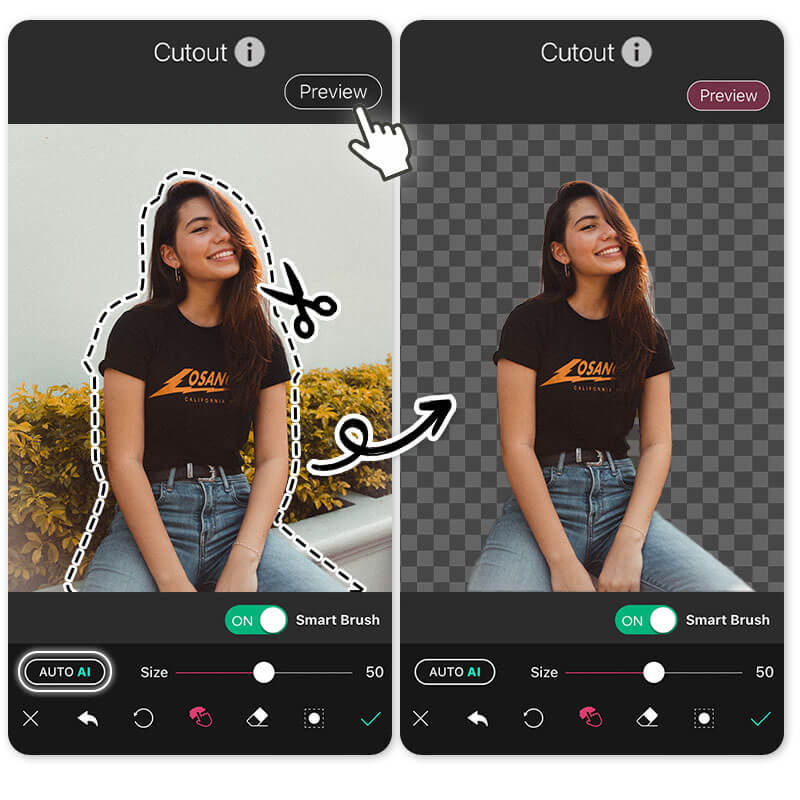
Editing complex content demands a refined skillset, going beyond basic cuts and transitions. This section delves into advanced techniques crucial for projects involving multiple speakers, synchronized audio-video issues, and layered content like interviews and podcasts. Mastering these methods will elevate your editing capabilities, enabling you to create polished, professional-quality productions.
Editing Multi-Speaker Content
Successfully editing content featuring multiple speakers hinges on clear communication and seamless transitions. The goal is to maintain audience engagement by ensuring a natural flow between speakers, avoiding abrupt jumps or confusing overlaps.
- Planning Speaker Order: Carefully consider the sequence of speakers. Organize the conversation logically, ensuring each speaker’s contributions build upon the previous ones. Create a basic Artikel before you start to avoid re-editing the whole project.
- Utilizing Jump Cuts Strategically: Jump cuts, where small portions of a speaker’s speech are removed, can be used to shorten responses and maintain momentum. Ensure these cuts are subtle and do not disrupt the flow. Avoid excessive use, which can appear jarring.
- Employing B-Roll Footage: Insert B-roll footage (supplemental video) over transitions between speakers. This provides a visual break, softening the shift and adding context.
- Implementing Audio Overlaps: Overlap the audio of one speaker with the beginning of the next speaker’s response. This creates a smoother transition, mimicking natural conversation. Experiment with the duration of the overlap for optimal effect.
- Using Visual Cues: Incorporate visual cues like lower thirds (speaker names and titles) to clearly identify speakers. This helps the audience follow the conversation, especially when multiple speakers are present.
- Equalizing Audio Levels: Ensure consistent audio levels across all speakers. Use audio normalization or compression to balance the volume and prevent sudden changes in loudness.
Synchronizing Audio and Video
Misalignment between audio and video is a common problem, requiring meticulous correction. Whether it’s a minor drift or a significant desynchronization, precise techniques are necessary to restore synchronization.
- Identifying the Problem: Carefully review the entire clip, looking for discrepancies between the audio and video. Look for noticeable lip-sync errors, audio delays, or visual jumps.
- Using Waveform Alignment: In your editing software, use the audio waveform as a visual guide. Align the peaks and valleys of the audio waveform with the corresponding mouth movements in the video.
- Employing Audio-Sync Tools: Many editing programs offer automatic audio-sync tools. These tools analyze the audio and video to identify and correct any timing discrepancies.
- Manual Adjustments: When automatic tools fail, manually adjust the audio or video track. This often involves small shifts in the timeline until the audio and video are perfectly aligned.
- Dealing with Drift: If the audio and video drift over time, use keyframes to make gradual adjustments. This prevents the misalignment from becoming progressively worse.
- Checking Multiple Points: Verify synchronization at several points throughout the clip. Ensure that the audio and video remain aligned consistently from start to finish.
Advanced Editing Techniques for Content with Multiple Layers
Content with multiple layers, such as interviews and podcasts, benefits from advanced editing methods that enhance clarity and engagement. Consider the following techniques:
| Technique | Description | Example | Benefits |
|---|---|---|---|
| Layered Audio Editing | Manipulating multiple audio tracks to create a polished sound. This includes noise reduction, equalization, compression, and adding music or sound effects. | In a podcast interview, the host’s voice, the guest’s voice, background music, and sound effects are all edited on separate tracks. Noise reduction is applied to both voices, and a compressor is used to ensure a consistent volume level. | Improves audio clarity, reduces distractions, and enhances the overall listening experience. Creates a more professional and engaging sound. |
| Dynamic Visuals | Incorporating visual elements to support the audio content. This includes B-roll footage, graphics, animations, and text overlays. | During an interview about a new product, B-roll footage of the product in action, along with animated graphics showcasing its features, are added. Text overlays display key points discussed by the speakers. | Adds visual interest, reinforces key messages, and provides context. Keeps the audience engaged and enhances understanding. |
| Multicam Editing | Switching between multiple camera angles during an interview or presentation. This provides different perspectives and adds visual dynamism. | An interview filmed with three cameras is edited, switching between close-ups, medium shots, and wide shots to create a visually interesting presentation. | Adds visual interest, enhances engagement, and allows for more dynamic storytelling. Provides the editor with more creative control. |
| Audio Sweetening and Mixing | The final process of refining audio, including equalization, compression, noise reduction, and the addition of music or sound effects. The goal is to create a professional-sounding audio track. | After editing the interview, the audio is sweetened by adding a subtle background music track, compressing the voices for a consistent volume, and removing any remaining background noise. | Creates a polished and professional sound. Enhances the listening experience and ensures that the audio is clear, balanced, and engaging. |
Maintaining Authenticity While Editing
Editing videos is a powerful tool for crafting a polished final product, but it’s crucial to wield it with a delicate touch. The goal isn’t just to remove errors; it’s to enhance the speaker’s message while preserving their unique personality and voice. Over-editing can lead to a robotic and unnatural delivery, making the content feel less engaging and relatable. The challenge lies in finding the sweet spot where professionalism meets genuine expression.
Preserving Personality and Voice
The speaker’s personality is what connects them with the audience. Their tone, quirks, and mannerisms are all part of what makes them, them. When editing, it’s vital to avoid stripping away these elements. A video that sounds overly scripted or devoid of human flaws can feel sterile and distant. The goal should be to refine the delivery, not to replace it.
Avoiding Overly Polished Edits
Over-editing often results from a desire for absolute perfection. While removing stumbles and filler words is important, going overboard can create an artificial feel. Excessive use of jump cuts, for instance, can disrupt the flow of natural speech. Similarly, heavily smoothing the audio to eliminate any vocal imperfections can rob the speaker of their natural timbre.
Balancing Professionalism and Natural Delivery
Striking the right balance requires a mindful approach to editing. Here’s a guide to help achieve that equilibrium:
- Embrace Imperfection: Minor stumbles, hesitations, and “ums” can actually make the speaker appear more relatable and authentic. Don’t feel the need to eliminate every single one. Leaving in a few can add to the natural feel.
- Choose Cuts Strategically: Instead of jump-cutting every pause, consider the context. Sometimes, a brief pause can be used for emphasis or to give the audience a moment to absorb information. Only cut when the pause significantly disrupts the flow.
- Maintain Vocal Tone: Avoid excessive audio processing that drastically alters the speaker’s voice. Subtle adjustments to volume and noise reduction are acceptable, but drastic changes can make the voice sound artificial.
- Use Transitions Judiciously: While transitions can be visually appealing, overuse can be distracting. Opt for simple cuts and crossfades whenever possible to maintain a natural flow. Reserve more elaborate transitions for specific purposes, such as segment breaks or to introduce new topics.
- Listen Critically: Before finalizing the edit, listen to the entire video from the perspective of the audience. Does it sound natural and engaging? Does the speaker’s personality shine through? Adjust the edits as needed until the balance feels right.
- Consider the Content’s Purpose: The appropriate level of polish will vary depending on the content. A casual vlog might benefit from a more relaxed editing style, while a formal presentation might require a more professional approach. Tailor the editing to suit the content’s purpose and the target audience.
Remember: The most effective videos are those that feel genuine and connect with the audience on a personal level.
Last Point
In conclusion, achieving flawless audio and video isn’t just about technical skill; it’s about preparation, practice, and a keen eye for detail. “How to Cut Out Mistakes and Pauses Seamlessly” provides a comprehensive roadmap, empowering you to create content that’s not only error-free but also engaging and authentic. By implementing these strategies, you can transform your delivery, captivate your audience, and achieve professional-quality results every time.