Welcome to the world of dynamic video editing! This guide, focusing on “How to Use Jump Cuts to Keep Your Videos Fast-Paced,” will show you how to transform your videos from sluggish to sensational. Jump cuts, those quick transitions between scenes, are a powerful tool used in all sorts of video genres, from vlogs to tutorials and interviews, to maintain viewer interest and boost the pace of your content.
Let’s dive in and learn how to make your videos pop!
Jump cuts, essentially, are abrupt transitions where a portion of a clip is removed, and the remaining segments are joined together. They’re used to skip unnecessary parts of a scene, speeding up the video’s rhythm and keeping the audience engaged. We’ll cover everything from planning and executing these cuts to incorporating B-roll and audio enhancements for seamless transitions, and avoiding common pitfalls.
Introduction: Defining Jump Cuts
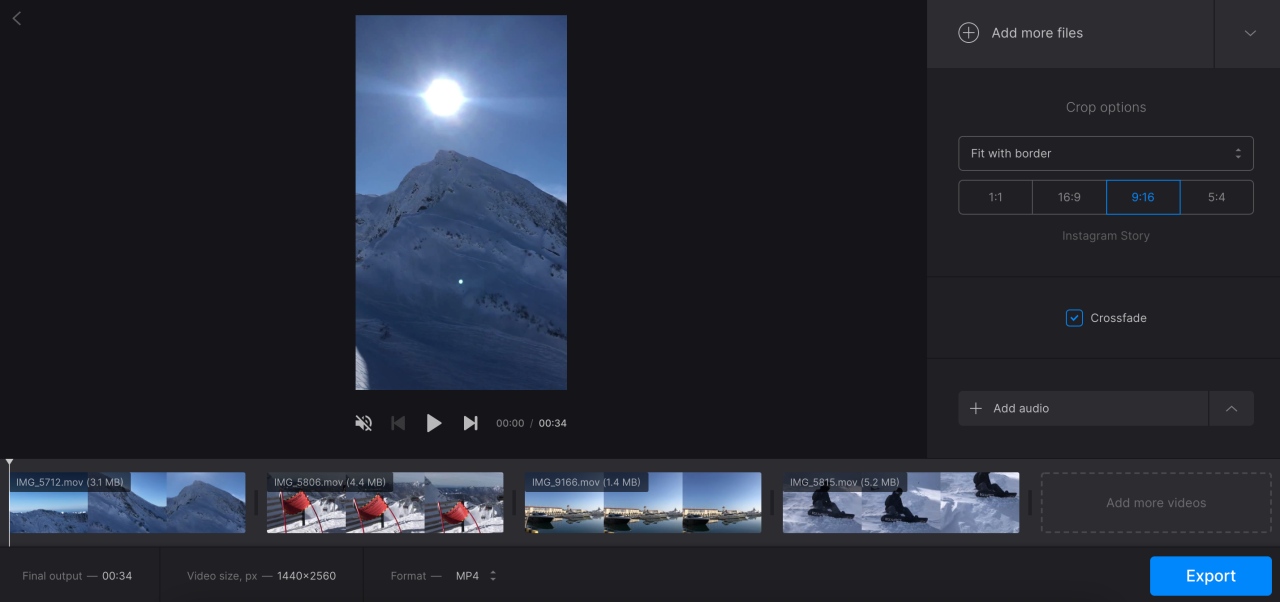
Jump cuts are a fundamental editing technique used to create a fast-paced and dynamic video experience. They are a simple yet effective way to remove unnecessary pauses or repetitive actions, streamlining the flow of your video and keeping viewers engaged. Understanding what they are and how to use them is crucial for any aspiring video editor.
Definition of Jump Cuts
A jump cut is an abrupt transition between two shots of the same subject, where the subject’s position or the background changes slightly. This creates a visual “jump” in the video, as if a small portion of the scene has been removed. The change is often subtle, but noticeable. The goal is to remove unwanted pauses, stutters, or dead air.
Examples of Jump Cuts in Different Video Genres
Jump cuts are incredibly versatile and used across various video genres. Their effectiveness lies in their ability to condense time and maintain viewer interest. Here are a few examples:
- Vlogs: Vloggers frequently use jump cuts to remove “ums,” “ahs,” and pauses in their speech, or to quickly transition between different topics or locations. This keeps the video flowing and prevents the audience from getting bored.
- Tutorials: In tutorials, jump cuts are used to skip over lengthy setup processes, repetitive steps, or waiting times. For example, in a cooking tutorial, a jump cut might remove the time it takes for the oven to preheat.
- Interviews: Editors use jump cuts to remove hesitations, stumbles, or irrelevant responses in interviews, creating a more concise and engaging narrative. This is especially important to maintain the viewer’s attention.
- Product Reviews: Jump cuts can be employed to show the different features of a product quickly, cutting out the time spent describing each feature at length. This is useful when comparing multiple items.
- Gaming Videos: Gamers use jump cuts to remove the boring parts of their gameplay, such as traveling across the map or loading screens, to show only the most exciting or informative segments.
Purpose of Using Jump Cuts in Video Editing
The primary purpose of using jump cuts is to enhance the pacing and engagement of a video. By removing unnecessary content, jump cuts achieve several key objectives:
- Improving Pacing: Jump cuts eliminate dead air and slow moments, making the video feel faster and more dynamic. This is crucial for maintaining viewer attention, especially in the age of short-form video content.
- Condensing Time: They allow you to condense time, removing lengthy processes or repetitive actions that don’t add value to the viewer experience. This is particularly useful in tutorials, where viewers want to learn efficiently.
- Enhancing Engagement: By keeping the video moving, jump cuts prevent viewers from losing interest. They create a more energetic and visually stimulating experience.
- Maintaining Focus: Jump cuts help to keep the focus on the important information or action. They prevent the viewer from getting bogged down in irrelevant details or pauses.
“Jump cuts are the secret weapon of the video editor, transforming a potentially sluggish video into a fast-paced and captivating experience.”
Benefits of Using Jump Cuts
Jump cuts, when employed strategically, can significantly enhance the effectiveness of your videos. They offer a multitude of advantages, ranging from improved pacing and viewer engagement to substantial time savings in the editing process. Understanding these benefits is crucial for leveraging jump cuts to their full potential.
Improving Video Pacing
Jump cuts are a fundamental tool for controlling the pace of your video. They allow you to remove unnecessary pauses, hesitations, and repetitive actions, thereby creating a more dynamic and engaging viewing experience.
- Eliminating Dead Air: Jump cuts excel at removing “dead air” or silent moments that can make a video feel slow. For example, if a speaker pauses for a few seconds before continuing, a jump cut can seamlessly remove that pause, keeping the viewer’s attention focused.
- Accelerating Action: They are useful for speeding up sequences that might otherwise be tedious. Imagine showing someone assembling a complex piece of furniture. Jump cuts can condense the process, highlighting only the key steps and avoiding the repetitive parts.
- Maintaining Momentum: By removing any elements that could slow down the video, jump cuts help maintain momentum. This is especially important in tutorials, reviews, and any content where the viewer’s time is valuable.
Maintaining Viewer Engagement
Viewer engagement is crucial for the success of any video. Jump cuts, by their nature, help to maintain this engagement by preventing boredom and keeping the viewer interested in the content.
- Preventing Boredom: Jump cuts keep the video moving and prevent viewers from losing interest due to long, drawn-out segments. The constant change and flow of information stimulate the viewer’s attention.
- Creating Visual Interest: The subtle shifts in perspective and timing created by jump cuts add visual interest. They prevent the video from becoming monotonous, encouraging viewers to stay tuned.
- Highlighting Key Information: Jump cuts can be used to emphasize important points. By quickly transitioning between different pieces of information or different shots, you can draw the viewer’s eye to the most critical aspects of the content.
Saving Time in Post-Production
One of the most practical benefits of jump cuts is the time they save during the editing process. This is particularly valuable for creators who produce a lot of content.
- Reducing Editing Time: Jump cuts simplify the editing process by allowing you to remove unwanted sections of footage quickly. Instead of meticulously trimming every frame, you can simply cut out the unnecessary parts.
- Simplifying Complex Edits: They can simplify complex edits by removing the need for elaborate transitions or visual effects. This is especially helpful when dealing with lengthy speeches or demonstrations.
- Streamlining Workflow: Using jump cuts can streamline your workflow, allowing you to produce more videos in less time. This is beneficial for content creators who need to maintain a consistent publishing schedule.
Planning and Preparation for Jump Cuts
Before you even touch your camera, careful planning is essential for crafting effective jump cuts. A well-prepared approach streamlines the editing process and ensures your video flows smoothly, rather than appearing choppy or disjointed. This involves several pre-production steps, including shot listing and script organization, to set you up for success.
Pre-Production Steps for Effective Jump Cuts
Thorough pre-production is the cornerstone of a well-edited video featuring jump cuts. These steps lay the groundwork for a polished final product and prevent headaches during the editing phase.
- Scriptwriting/Talking Points: Develop a clear script or detailed talking points. Know exactly what you want to say and the order you want to say it. This allows you to plan where jump cuts will naturally occur. Consider breaking down longer sentences or paragraphs into shorter, more digestible segments.
- Shot Listing: Create a shot list that Artikels the different shots you’ll need. This is crucial for maintaining visual variety and ensuring you have enough footage to work with during editing. The shot list should specify the content of each shot, its duration (estimated), and any specific angles or framing.
- Location Scouting: Choose your filming location carefully. The background should be visually appealing and not distracting. Consider the lighting and sound quality in the location, as these factors directly impact the quality of your video.
- Equipment Check: Ensure your camera, microphone, and any other necessary equipment are functioning correctly. Charge batteries, format memory cards, and test your audio setup before you start filming.
- Rehearsal: Practice your script or talking points. This helps you become comfortable with the material and identify areas where jump cuts can be incorporated naturally. Rehearsing also helps you refine your delivery and pacing.
Designing a Simple Shot List for Jump Cuts
A well-structured shot list is a vital tool for planning jump cuts. It provides a roadmap for your filming session, helping you capture the necessary footage and ensure a cohesive final product. The shot list should be detailed yet easy to follow.
Here’s an example of a simple shot list for a video about making coffee:
| Shot # | Description | Duration (Estimated) | Notes |
|---|---|---|---|
| 1 | Wide shot: Person holding coffee beans. | 5 seconds | Good lighting. |
| 2 | Medium shot: Person pouring beans into grinder. | 3 seconds | Focus on the action. |
| 3 | Close-up: Grinding coffee beans. | 4 seconds | Audio of grinding is important. |
| 4 | Medium shot: Person pouring ground coffee into a French press. | 5 seconds | Show the details. |
| 5 | Close-up: Pouring hot water into the French press. | 6 seconds | Steam effect. |
| 6 | Medium shot: Person stirring the coffee. | 4 seconds | Smooth movements. |
| 7 | Close-up: Coffee brewing. | 7 seconds | Wait for the extraction. |
| 8 | Medium shot: Person pouring coffee into a cup. | 5 seconds | Final presentation. |
| 9 | Close-up: Person taking a sip of coffee. | 3 seconds | Happy expression. |
This shot list provides a framework for capturing a variety of shots, allowing for flexibility during editing. You can adjust the durations and add more shots as needed, depending on the complexity of your video. Remember that a well-designed shot list is your guide throughout the filming process.
Organizing Your Script or Talking Points for Jump Cuts
Strategically structuring your script or talking points is crucial for seamlessly incorporating jump cuts. By breaking down your content into manageable segments, you create natural opportunities for these edits, keeping your audience engaged.
Here’s how to structure your script for jump cuts, using the example of explaining how to bake a cake:
- Introduction: Briefly introduce the topic (baking a cake).
- Ingredients: List the ingredients.
- Flour (shot 1: holding the bag of flour)
- Sugar (shot 2: scooping sugar into a measuring cup)
- Eggs (shot 3: cracking eggs)
- Instructions: Explain the steps.
- Mixing (shot 4: mixing ingredients in a bowl)
- Baking (shot 5: placing the cake in the oven)
- Cooling (shot 6: taking the cake out of the oven)
- Conclusion: Summarize and show the finished cake.
This structure allows you to break down the process into discrete actions, making it easy to create jump cuts between each step. You can use different angles or close-ups for each jump cut to maintain visual interest. Remember to keep the segments short and focused for the best results.
Techniques for Implementing Jump Cuts
Now that you understand the benefits and planning involved, let’s dive into the practical side of creating jump cuts. This section will equip you with the skills to seamlessly integrate jump cuts into your video editing workflow, ensuring a dynamic and engaging final product. We’ll cover the essential steps and provide helpful tips to master this technique.
Demonstrating Jump Cut Implementation in Video Editing Software
The process of creating a jump cut is fundamentally similar across various video editing software, although the specific interface and tools may differ. Here’s a general walkthrough, using common features found in most editing programs.
- Import Your Footage: Begin by importing the video clips you want to edit into your software’s project panel or media bin. This is usually done through a “File” > “Import” or a similar menu option.
- Add Clips to the Timeline: Drag and drop the desired clips onto the timeline. The timeline is where you’ll arrange and edit your video segments.
- Identify the Edit Points: Play through your footage and identify the sections where you want to create a jump cut. These are the points where you want to remove a portion of the video and connect the remaining segments. Consider where the action or speech is the most repetitive, where the subject is moving unnaturally, or where there’s a pause in the speech.
- Make the Cuts: Use the “Razor” or “Split” tool (often represented by a blade icon) to make cuts at the beginning and end of the section you want to remove. Click on the timeline at the precise frame where you want to make the cut.
- Remove the Unwanted Section: Select the section of the clip between the two cuts and delete it. You can typically do this by right-clicking and selecting “Delete” or pressing the “Delete” key on your keyboard.
- Close the Gap: After deleting the unwanted section, there will be a gap in your timeline. Drag the remaining portion of the clip to the left, to close the gap and join the two segments.
- Preview and Refine: Play back the edited section to ensure the jump cut is seamless. You may need to adjust the cut points slightly to achieve the desired effect. Listen to the audio carefully, as the cut can sometimes create an abrupt sound change.
Example: Imagine you’re filming a tutorial on baking a cake. You might use jump cuts to remove the repetitive action of stirring batter or waiting for the oven to preheat, while still conveying the essential steps.
Selecting Footage for Jump Cuts
Choosing the right footage is crucial for effective jump cuts. Poorly chosen clips can result in jarring transitions and distract from your message. Here’s a guide to help you select the best footage.
The goal is to remove the non-essential parts while maintaining the flow of information. Consider these points:
- Redundancy: Look for sections where the action or dialogue repeats itself. This could be repetitive actions or pauses in speech. Jump cuts are perfect for removing these redundancies.
- Minor Changes: Choose scenes where the subject’s position, the background, or the camera angle changes very slightly. This creates a sense of continuity even with the cut.
- Natural Breaks: Utilize natural pauses in speech or action. A slight pause before and after the cut helps to mask the transition and makes it less noticeable.
- Focus on Essential Information: Ensure that the remaining footage conveys all the necessary information. The jump cuts should not remove any vital details.
- Background Consistency: If the background changes noticeably between the cut points, the jump cut will be more obvious. Try to use clips where the background remains relatively consistent.
Example: In a product review, if the presenter is talking about a feature for several seconds without any change in their expression or the product’s appearance, you can use a jump cut to remove some of the unnecessary speech, keeping the video concise.
Trimming and Splicing Clips for Seamless Transitions
The precision of your cuts is paramount for a seamless jump cut. The following guide details how to trim and splice clips for smooth transitions.
The secret lies in the fine-tuning of the cut points. Here’s a step-by-step guide:
- Zoom In: Zoom in on your timeline to see the individual frames of your video. This allows for more precise trimming.
- Fine-Tune the Cut Points: Carefully adjust the cut points on both sides of the removed section. The goal is to ensure that the remaining segments flow together naturally.
- Audio Considerations: Pay close attention to the audio. Make sure the audio levels are consistent and that there are no abrupt sound jumps.
- Match the Action: If the action is continuous, try to cut at a point where the movement is not too drastic.
- Preview Repeatedly: After making your cuts, play the section several times. Listen carefully to the audio and watch the video to ensure a smooth transition.
Example: If you’re demonstrating a complex technique, use jump cuts to remove the pauses and repetitive actions. This maintains the viewer’s interest and keeps the video engaging.
Avoiding Common Mistakes with Jump Cuts
Mastering jump cuts isn’t just about chopping up footage; it’s about doing it seamlessly and purposefully. Avoiding common pitfalls is crucial for maintaining viewer engagement and preventing your videos from looking amateurish. This section focuses on identifying and rectifying the most frequent errors in jump cut implementation, ensuring your edits are polished and professional.
Avoiding the “Head Bob” Effect
The “head bob” effect, where the subject’s head appears to jump unnaturally between cuts, is a major distraction. It breaks the illusion of a smooth, continuous performance. This is frequently caused by minor shifts in the subject’s position or camera angle between takes.To mitigate this:
- Maintain Consistent Framing: Before each take, meticulously frame the shot, paying close attention to the subject’s head position, shoulders, and background elements. Use a tripod to keep the camera stable.
- Use a Wider Shot: A wider shot provides more leeway for subtle movements. This reduces the visibility of small shifts in the subject’s position.
- Consider the Rule of Thirds: Ensure the subject’s eyes are consistently placed along the same horizontal line of the rule of thirds across different takes.
- Minor Adjustments in Post-Production: In your editing software, use the crop or scale tools to subtly adjust the position of the subject’s head or body to align the cuts. Be careful not to overdo it, as excessive manipulation can also be noticeable.
- The “B-Roll” Solution: If the head bob is unavoidable, incorporate B-roll footage (cutaway shots) to cover the transition. This can be a shot of the subject’s hands, a related object, or a different angle of the scene.
Maintaining Continuity When Using Jump Cuts
Continuity is key to a viewer’s understanding and enjoyment of your video. Disruptions in continuity can confuse the audience and break their immersion. It’s about ensuring the viewer can follow the story or information without being distracted by inconsistencies.Here’s how to maintain continuity:
- Pay Attention to Wardrobe and Props: Ensure the subject’s clothing, accessories, and any props remain consistent between takes. For example, if the subject is holding a pen, make sure it’s present in subsequent shots.
- Monitor Lighting and Shadows: Consistent lighting is essential. Film takes at the same time of day or use artificial lighting to match the lighting conditions across different shots.
- Track the Subject’s Position and Action: If the subject is moving or performing an action, ensure the movement flows logically between cuts. For example, if the subject is pouring a drink, the level of the drink in the glass should increase incrementally with each cut.
- Use Audio to Bridge Gaps: Overlapping audio from one clip into the next can smooth transitions and maintain a sense of continuity.
- Consider the 180-Degree Rule: This rule dictates that cameras should remain on one side of an imaginary line (the “axis of action”) to maintain consistent screen direction. Breaking this rule can disorient viewers.
Common Pitfalls and How to Overcome Them
Several common mistakes can undermine the effectiveness of jump cuts. Identifying these pitfalls and implementing corrective measures can significantly improve the quality of your videos.Here are some common pitfalls and solutions:
- Excessive Jump Cuts: Overuse can be jarring and distracting. Use jump cuts strategically, not just for the sake of it. Consider whether a cut is truly necessary or if a longer take would be more effective.
- Inconsistent Audio Levels: Ensure audio levels are consistent across all clips. Drastic changes in volume can be unpleasant for viewers. Use a compressor or normalize the audio in your editing software.
- Abrupt Transitions: Avoid abrupt cuts that are too jarring. Sometimes a subtle crossfade or a brief use of B-roll can smooth the transition.
- Ignoring the Subject’s Body Language: Be mindful of the subject’s gestures and expressions. Cuts that interrupt a gesture or change an expression mid-sentence can look awkward.
- Lack of Purpose: Every jump cut should serve a purpose – to speed up the pace, emphasize a point, or maintain interest. If a cut doesn’t contribute to these goals, it’s probably unnecessary.
Adding B-Roll to Smooth Jump Cuts
B-roll footage is a powerful tool for elevating your video content, and it plays a crucial role in seamlessly integrating jump cuts. By strategically incorporating B-roll, you can maintain a fast-paced video while masking the abruptness of jump cuts, creating a more visually engaging and professional final product. This section delves into how B-roll can be used to smooth jump cuts.
The Role of B-Roll Footage in Covering Jump Cuts
B-roll acts as a visual buffer, providing a different perspective or supporting imagery to replace the jump cut. The primary function is to cover the edits that might otherwise appear jarring. It offers visual interest, maintains the flow of the video, and prevents the viewer from being distracted by the abrupt changes in the primary footage. It’s about creating a sense of continuity, even when parts of the original take have been removed.
Examples of B-Roll That Complements Jump Cuts
Consider the following examples of how B-roll can enhance jump cuts in different scenarios:
- Talking Head Videos: If you’re creating a video where you’re primarily talking to the camera, B-roll can include shots of the environment you’re in, related objects, or graphics. For instance, if you’re explaining how to bake a cake, the B-roll could show close-ups of ingredients, the mixing process, the cake in the oven, or the finished product.
- Product Reviews: In a product review, B-roll might feature different angles of the product, someone using the product, or close-ups of its features. This not only covers jump cuts but also provides additional context and visual information about the product. For example, if reviewing a new smartphone, the B-roll might include shots of the phone being unboxed, the screen displaying different apps, and the phone being held and used.
- Tutorials: When creating tutorials, B-roll can showcase the steps you’re explaining. This could include screen recordings, close-ups of hands performing a task, or other relevant visuals. For example, if you’re demonstrating how to tie a specific knot, B-roll could show the knot being formed from multiple angles.
- Travel Vlogs: For travel vlogs, B-roll can showcase the locations being visited, people interacting with the surroundings, and details of the local culture. This could include establishing shots of landmarks, people interacting with each other, or close-ups of local cuisine.
How to Incorporate B-Roll to Cover Jump Cuts
Incorporating B-roll effectively involves careful planning and execution. Here’s a guide to help you integrate B-roll seamlessly:
- Plan Your B-Roll: Before you start filming, identify the areas in your primary footage where you anticipate using jump cuts. Then, brainstorm what B-roll footage would best complement those sections. Consider the topic, the tone of your video, and the overall message you want to convey.
- Shoot the B-Roll: Film your B-roll footage with intention. Vary your shots: wide shots, medium shots, and close-ups. Ensure the B-roll is well-lit and visually appealing. Capture more B-roll than you think you’ll need, as it gives you more flexibility during editing.
- Edit the B-Roll: In your editing software, place the B-roll over the jump cuts in your primary footage. Ensure the B-roll transitions smoothly and aligns with the audio of your primary footage. The B-roll should complement the audio, not distract from it.
- Adjust the Timing: Adjust the length of the B-roll clips to cover the jump cuts effectively. You may need to experiment with different durations to find what works best. The goal is to create a seamless transition, where the viewer doesn’t notice the cut.
- Consider Audio: Sometimes, you can use the audio from your primary footage over the B-roll. Other times, you may need to add background music or sound effects to the B-roll to enhance the viewing experience. Make sure the audio doesn’t clash with the audio of your primary footage.
- Review and Refine: After editing, review your video carefully. Make sure the B-roll enhances the overall viewing experience. If any transitions feel awkward or out of place, adjust the B-roll or experiment with different B-roll clips.
By following these steps, you can effectively use B-roll to smooth jump cuts, resulting in more polished and engaging video content.
Using Audio to Enhance Jump Cuts
Audio plays a crucial role in making jump cuts seamless and engaging. By strategically manipulating sound, you can not only mask the visual breaks but also enhance the overall pacing and impact of your video. This section will delve into how you can leverage audio techniques to elevate your jump cut game.
Sound Effects for Masking Jump Cuts
Sound effects can be incredibly effective in disguising jump cuts, making the transitions feel less abrupt. The key is to choose sounds that are relevant to the scene and timed precisely with the cut.
- The “Whoosh” Transition: A common technique is to use a subtle “whoosh” sound effect, like air rushing past, or a quick transition sound. Place this sound effect at the moment of the cut. This creates a sense of movement and fluidity, drawing the viewer’s attention away from the visual break.
- Using Ambient Sounds: If your scene involves a specific environment (e.g., a coffee shop), you can use ambient sound effects, like the clinking of cups or background chatter. A brief, well-placed ambient sound can smooth over the jump cut by providing a consistent auditory backdrop.
- The “Zap” or “Click” Effect: For more stylistic cuts, consider using short, impactful sound effects such as a “zap” or a “click”. This can work well in tech tutorials or videos where a visual shift signifies a change in action or process. However, use this sparingly to avoid over-reliance.
- Sound Effects from the Action: If the jump cut involves an action, use a sound effect that accompanies the action. For instance, if a character is speaking, a jump cut might be masked by the sound of their voice continuing naturally.
Adjusting Audio Levels for Smooth Transitions
Proper audio level adjustments are vital for creating a professional and polished feel. This involves managing the volume of your main audio track, any background music, and sound effects.
- Ducking Background Music: “Ducking” refers to lowering the volume of background music or ambient sounds when a speaker is talking. This ensures the audience can clearly hear the dialogue. When the speaker pauses, the music can rise back up.
- Fade-Ins and Fade-Outs: Use gradual fade-ins and fade-outs for both background music and sound effects. This prevents jarring transitions and creates a smoother listening experience.
- Consistent Audio Levels: Ensure the audio levels remain consistent throughout the video. This involves monitoring the audio waveforms and adjusting the volume as needed to prevent any sudden jumps in volume that might distract the viewer. This is especially important for jump cuts, where audio continuity is crucial.
- Matching Audio with Visuals: Sync the audio with the visual elements of the scene. For example, if a character is speaking and then a jump cut occurs, the audio should transition smoothly.
Audio adjustments are often the unsung heroes of a polished video. Paying attention to the levels, transitions, and placement of sound effects can transform a choppy edit into a fluid and engaging viewing experience.
Jump Cut Examples in Different Video Types
Jump cuts are incredibly versatile and can be adapted for various video styles to enhance pacing and maintain viewer engagement. Their effectiveness varies depending on the video’s purpose and target audience. Understanding how to apply them in different contexts is key to mastering this editing technique. Let’s explore some practical examples.
Jump Cuts in Tutorials
Tutorials benefit significantly from jump cuts, as they allow you to condense lengthy processes and maintain viewer focus. These cuts prevent boredom and keep the tutorial concise.Here’s how jump cuts are effectively utilized in tutorials:
- Demonstrating Software Steps: Imagine a tutorial on using a specific software feature. Instead of showing every click and menu navigation, jump cuts can quickly transition between crucial steps. For instance, a tutorial on using Photoshop could jump from selecting a tool, to adjusting settings, to applying an effect, without showing the entire process of clicking each individual button.
- Building or Assembling Instructions: Tutorials involving physical assembly, like building furniture or assembling electronics, can use jump cuts to speed up time-consuming processes. The video can jump from tightening one screw to tightening the next, omitting the repetitive aspects.
- Cooking or Crafting Demonstrations: Jump cuts are crucial for cooking tutorials, showcasing steps like chopping vegetables, mixing ingredients, or waiting for food to cook. Crafting tutorials can jump between steps such as cutting fabric, sewing pieces, or applying glue.
Jump Cuts in Vlogs
Vlogs, or video blogs, use jump cuts to create a sense of dynamism and keep the narrative flowing. They help condense daily activities and maintain viewer interest in a more conversational format.Here are examples of jump cuts in vlogs:
- Daily Routine Condensation: A vlogger might start with waking up, then jump to brushing teeth, then to eating breakfast, then to leaving the house, effectively summarizing a morning routine in a short timeframe.
- Travel Vlogs: Travel vlogs frequently use jump cuts to show the highlights of a trip without the slower moments. The vlogger might jump from one location to another, showcasing the most interesting sights.
- Storytelling Enhancement: Jump cuts can add emphasis to specific moments within a story. If a vlogger is recounting an exciting event, strategic cuts can highlight key parts of the narrative and add excitement.
Jump Cuts in Interviews
Jump cuts are a staple in interview settings, used to remove pauses, filler words, and unnecessary hesitations. They keep the conversation moving and the viewer engaged with the subject matter.Here’s how jump cuts are implemented in interviews:
- Removing “Ums” and “Ahs”: The most common use is to eliminate filler words like “um,” “ah,” and other verbal pauses. This results in a cleaner, more professional-sounding interview.
- Condensing Responses: If the interviewee gives a long answer, jump cuts can trim down the less important parts, keeping the core message intact.
- Maintaining Pace: Jump cuts ensure the interview doesn’t drag, keeping viewers interested and preventing them from losing focus. The cuts maintain a rhythm that keeps the conversation engaging.
Advanced Jump Cut Techniques
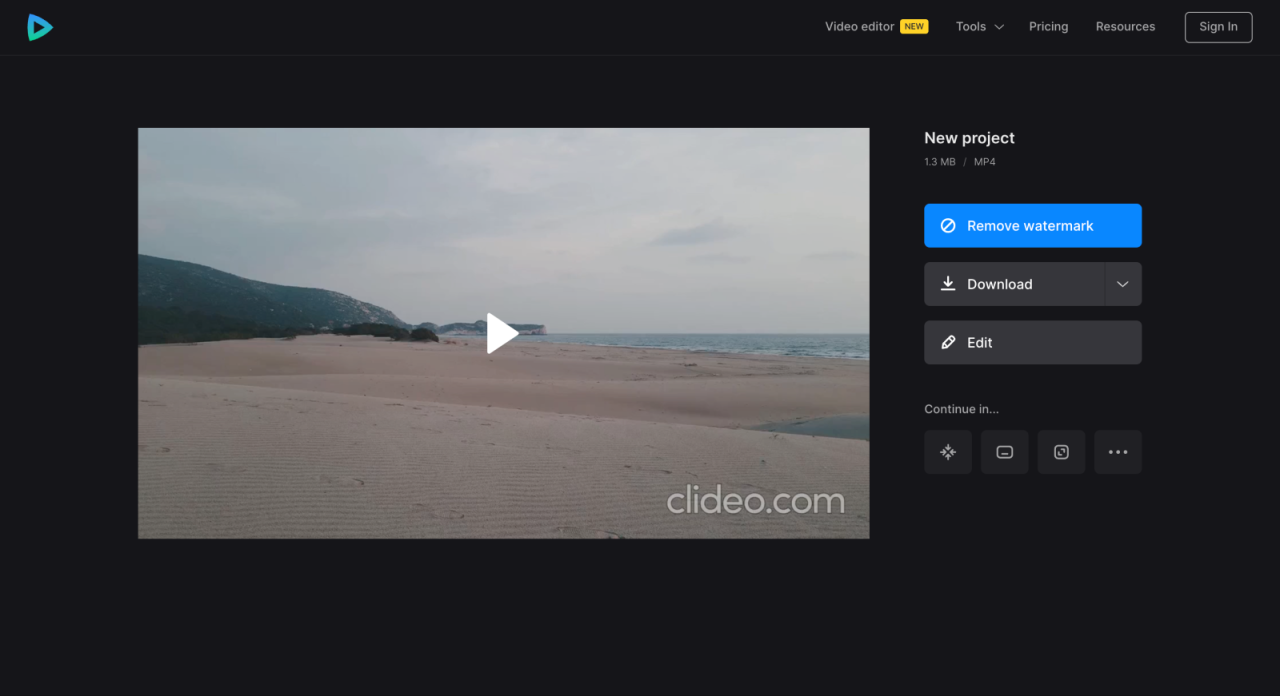
Now that you’ve mastered the basics, let’s elevate your jump cut game. These advanced techniques will help you create more dynamic and engaging videos, pushing your editing skills to the next level. We’ll explore how to use camera movement, build compelling montages, and inject humor using this versatile editing style.
Using Dynamic Jump Cuts with Camera Movement
Incorporating camera movement into your jump cuts adds another layer of visual interest. This is a powerful way to maintain pace while also keeping the viewer engaged.To use dynamic jump cuts effectively, consider these points:
- Plan Your Shots: Before you start filming, visualize the transitions. Decide on the camera movements you want to use for each jump cut. This could be a slight pan, tilt, zoom, or even a short dolly movement. For instance, you might start with a wide shot, zoom in slightly for the first jump cut, and then pan to a new subject or element for the next.
- Matching Action and Framing: Try to match the action and framing across jump cuts. If a subject is moving from left to right in one shot, ensure the next shot continues the movement, maintaining visual flow.
- Camera Movement Speed: The speed of your camera movement is critical. Too slow, and the cut may feel awkward; too fast, and it could be jarring. Experiment to find the right balance. A slow zoom, for example, can draw the viewer’s eye to a specific detail.
- Use B-Roll Strategically: B-roll is your friend! Insert B-roll footage during your camera movement jump cuts to create a more seamless transition. For example, while panning across a landscape, you could cut to a close-up of a specific element within that landscape.
- Examples: Consider a cooking tutorial. You could start with a wide shot of the chef preparing ingredients, zoom in slightly as they chop vegetables, then jump cut to a close-up of the chopping process. The zoom adds visual interest, and the close-up provides essential detail. Another example is a travel video: pan across a cityscape, jump cut to a closer shot of a landmark, and then continue the pan to another interesting location.
Creating a Jump Cut Montage
Jump cut montages are an excellent way to condense time and convey a lot of information quickly. They’re perfect for showcasing a sequence of events, demonstrating a process, or building excitement.Here’s how to build a successful jump cut montage:
- Define Your Goal: What story do you want to tell? What is the purpose of the montage? A montage showcasing a workout routine, for example, should focus on the movements, not lengthy pauses.
- Select Your Footage: Choose the best clips that contribute to your story. Shorter clips are usually better for maintaining the fast pace.
- Vary the Shots: Don’t use the same shot type repeatedly. Mix wide shots, medium shots, and close-ups to keep the montage visually interesting. For instance, in a montage of a car being built, you could alternate between shots of the assembly line, close-ups of specific parts, and shots of the car taking shape.
- Music and Sound Effects: Music is crucial for setting the mood and driving the pace of your montage. Choose music that complements your visuals. Sound effects can also add emphasis and enhance the viewing experience. A fast-paced montage might use upbeat music with percussive elements.
- Transitions: Experiment with transitions. While jump cuts are the core of the montage, you can use occasional crossfades or other subtle transitions to provide variety and smooth out the flow.
- Example: Imagine a montage of someone building a model airplane. The montage could start with the unboxing, followed by close-ups of the instructions, then shots of the builder gluing pieces together, and finally, shots of the finished airplane. The use of music and sound effects would further enhance the experience.
Using Jump Cuts for Comedic Effect
Jump cuts can be a powerful tool for comedy, creating unexpected moments, and amplifying the humor in your videos.To use jump cuts for comedic effect, consider these approaches:
- The Unexpected Cut: Cut to a completely different scene or a reaction shot at an unexpected moment. This creates a surprise element that can be funny. For example, a character confidently stating a fact, then the jump cut shows them immediately making a mistake.
- The “Awkward Silence” Cut: Use a jump cut to shorten an awkward silence, amplifying the humor of the situation.
- The “Rapid-Fire” Cut: String together a series of short, quick jump cuts to create a chaotic or absurd effect. This is particularly effective for showing a character’s thoughts or a series of unrelated events. For instance, a character is trying to get ready in the morning and the jump cuts show a series of mishaps.
- Exaggerated Reactions: Cut between a normal action and an exaggerated reaction. The contrast creates humor.
- Examples: Think of a sketch comedy show where a character says something outlandish, and the jump cut immediately shows a confused reaction from another character. Or, imagine a tutorial video where the presenter struggles to perform a task, and each attempt is shown with a quick jump cut. Another example is the “quick cuts” during a funny scene in a sitcom.
Tools and Software for Jump Cuts
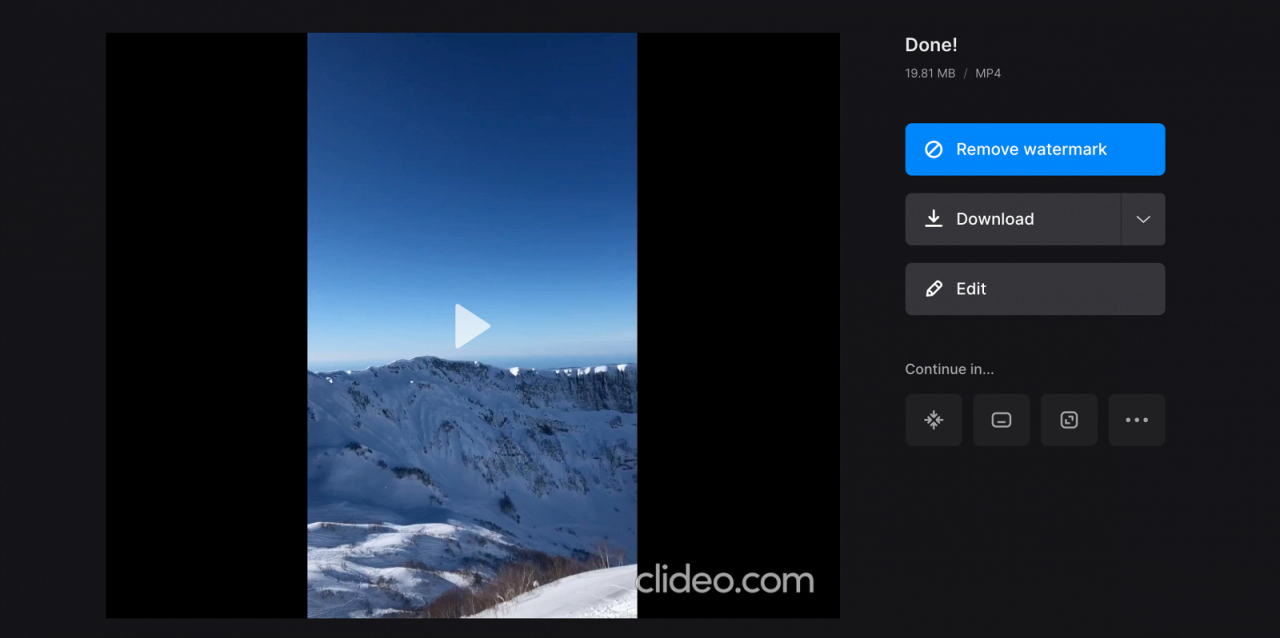
Choosing the right video editing software is crucial for efficiently creating jump cuts. The software you select should offer intuitive tools for trimming, arranging clips, and adding transitions seamlessly. This section will explore various software options, compare their features, and provide guidance on selecting the best fit for your video editing needs.
Video Editing Software Options
Numerous video editing software options are available, catering to different skill levels and budgets. These tools provide varying functionalities, including support for jump cuts.
- Adobe Premiere Pro: A professional-grade video editing software widely used in the industry. It offers extensive features, including precise trimming tools, advanced audio editing, and a vast library of effects and transitions.
- Final Cut Pro: Apple’s professional video editing software, known for its performance and user-friendly interface. It’s optimized for macOS and offers features like magnetic timelines and advanced color grading.
- DaVinci Resolve: A powerful, free (with a paid version) video editing software that’s gaining popularity. It includes comprehensive features for editing, color correction, visual effects, and audio post-production.
- Filmora: A user-friendly video editing software suitable for beginners. It offers a range of features, including basic trimming tools, pre-made effects, and templates.
- iMovie: Apple’s free video editing software, pre-installed on macOS and iOS devices. It provides a simple interface and is ideal for basic video editing tasks, including jump cuts.
- OpenShot: A free and open-source video editor that is cross-platform. It supports a variety of video and audio formats.
Comparison of Video Editing Software Features
A comparative analysis of key features relevant to jump cuts can help you make an informed decision. The following table provides a feature comparison across several popular video editing software options.
| Feature | Adobe Premiere Pro | Final Cut Pro | DaVinci Resolve | Filmora |
|---|---|---|---|---|
| Trimming Tools | Precise trimming, ripple edit, rolling edit | Magnetic timeline, precise trimming | Precise trimming, ripple edit, rolling edit | Basic trimming tools |
| Multi-track Editing | Yes, unlimited tracks | Yes, unlimited tracks | Yes, unlimited tracks | Yes, limited tracks |
| Audio Editing | Advanced audio mixing, noise reduction | Advanced audio editing, noise reduction | Advanced audio mixing, Fairlight audio | Basic audio editing |
| Transitions | Extensive library of transitions | Extensive library of transitions | Extensive library of transitions | Pre-made transitions |
| B-Roll Support | Yes, easily integrated | Yes, easily integrated | Yes, easily integrated | Yes, easily integrated |
| Color Correction | Advanced color grading tools | Advanced color grading tools | Industry-leading color correction | Basic color correction tools |
| Price | Subscription-based | One-time purchase | Free (with paid version) | Subscription or one-time purchase |
| Platform | Windows, macOS | macOS | Windows, macOS, Linux | Windows, macOS |
Selecting the Best Software for Your Needs
Choosing the right software depends on several factors, including your budget, skill level, and the complexity of your projects. Consider these points when making your selection:
- Budget: Determine how much you’re willing to spend. Free options like DaVinci Resolve and iMovie are excellent for beginners, while subscription-based software like Adobe Premiere Pro can be expensive.
- Skill Level: If you’re a beginner, user-friendly software like Filmora or iMovie may be preferable. For experienced editors, professional software like Adobe Premiere Pro or Final Cut Pro offers more advanced features.
- Features: Consider the features you need. For jump cuts, look for precise trimming tools, multi-track editing capabilities, and easy-to-use transitions.
- Platform: Ensure the software is compatible with your operating system. Adobe Premiere Pro and DaVinci Resolve are cross-platform, while Final Cut Pro is exclusive to macOS.
- Performance: The software should run smoothly on your computer. Consider the system requirements and read reviews to assess performance.
The best software is the one that fits your specific needs and helps you achieve your creative vision. Don’t be afraid to try out different options and experiment to find the perfect fit.
Best Practices and Style Considerations
Maintaining a consistent style and understanding how jump cuts affect video pace and tone are crucial for effective storytelling. This section explores how to achieve stylistic consistency, tailor jump cuts to specific video styles, and leverage them to enhance your narrative.
Creating a Consistent Style with Jump Cuts
Establishing a recognizable visual style is key to branding and audience engagement. Consistent use of jump cuts contributes to this by creating a unified feel across your videos.
- Define Your Jump Cut Style: Determine the frequency, duration, and type of jump cuts you’ll use. Will they be subtle and quick, or more noticeable? This choice should align with your overall video aesthetic. For instance, a fast-paced tutorial might use frequent, short jump cuts, while a more conversational vlog might use them sparingly.
- Maintain Consistency in Placement: Decide where jump cuts will typically occur. Avoid random cuts; instead, cut between related thoughts or actions. For example, in a cooking video, cut between steps in a recipe, rather than mid-sentence.
- Color Grading and Editing: Apply consistent color grading across all jump cuts to maintain a cohesive look. This prevents jarring transitions. Ensure your editing software has the tools to make these color corrections efficiently.
- Audio Considerations: Keep the audio consistent across jump cuts. Ensure background noise levels are similar and that there are no abrupt changes in music or sound effects. A slight overlap of audio can sometimes smooth the transition.
- Use Templates or Presets: Create templates or presets in your editing software for frequently used jump cut styles. This saves time and ensures consistency across multiple videos.
Establishing Pace and Tone with Jump Cuts
Jump cuts are powerful tools for shaping the rhythm and emotional impact of your video.
- Fast Pace: Frequent, short jump cuts create a sense of urgency and excitement. This is commonly used in action-oriented content, trailers, or product demonstrations.
- Slow Pace: Fewer jump cuts, with longer takes between them, create a more relaxed and contemplative feel. This suits documentaries, interviews, or videos focusing on detailed explanations.
- Tone Control: The type of jump cut used can also influence the tone. A quick cut can add humor or energy, while a slightly longer cut might indicate a pause for thought or emphasis.
- Examples:
- Educational Videos: Use jump cuts to quickly skip over less important information or lengthy explanations, keeping the viewer engaged.
- Vlogs: Jump cuts help condense the footage and maintain viewer interest, preventing the video from feeling slow or rambling.
- Product Reviews: Use jump cuts to quickly showcase different product features or demonstrate functionality.
Video Styles Benefiting from Jump Cuts
Different video styles benefit differently from jump cuts, depending on their objectives and target audience.
- Tutorials and How-To Videos: Jump cuts allow creators to efficiently present information, removing unnecessary steps or pauses, thus keeping viewers focused.
- Vlogs and Personal Videos: Jump cuts help condense long-form footage, making the content more digestible and preventing the video from feeling drawn out.
- Product Reviews and Demonstrations: Jump cuts enable creators to highlight specific features or functionalities quickly, allowing for a more dynamic presentation.
- Gaming Videos: Jump cuts can be used to skip over repetitive gameplay, showcasing only the most exciting moments.
- Music Videos: Jump cuts are often used to create a dynamic and visually interesting experience, matching the rhythm and energy of the music.
Jump Cut Alternatives and When to Use Them
While jump cuts are a powerful tool for creating fast-paced videos, they aren’t always the best choice. Understanding alternative editing techniques and knowing when to use them will elevate your video editing skills and help you choose the most effective transition for each situation. This section explores alternatives to jump cuts, highlighting their strengths and the scenarios where they excel.
L-Cuts and J-Cuts
L-cuts and J-cuts are audio transitions that offer a smoother alternative to jump cuts. They manipulate the audio track to create a more seamless flow between video clips.
- L-Cut: In an L-cut, the video cuts to the next clip, but the audio from the first clip continues to play. The visual transition happens before the audio transition, forming an “L” shape on the timeline. This technique is often used to provide a more natural flow, especially when a speaker is delivering a continuous thought.
- J-Cut: A J-cut is the opposite of an L-cut. The audio from the next clip begins playing
-before* the video of that clip appears. This creates a “J” shape on the timeline. J-cuts are effective for building anticipation or introducing a new topic or speaker, using audio to subtly cue the viewer.
Other Transition Techniques
Beyond L-cuts and J-cuts, other transition techniques offer additional ways to smooth transitions.
- Cross Dissolves: This is a classic transition where the first clip gradually fades out while the second clip gradually fades in. Cross dissolves are useful for creating a softer, more elegant transition, and can indicate a change in time, location, or topic.
- Wipes: Wipes involve one clip pushing the other off the screen in a variety of patterns. They can be effective for dramatic transitions or for indicating a change in scene or setting.
- Motion Graphics: Animated transitions, such as moving shapes or elements, can be used to add visual interest and a sense of polish to your videos. These can range from simple fades to complex animations.
When to Use Different Transitions
The choice of transition depends heavily on the content and the desired effect.
- Jump Cuts: Best for creating a fast-paced, energetic feel. Excellent for interviews where you want to remove pauses and filler words, or for demonstrating a process in a concise manner.
- L-Cuts: Ideal for maintaining a natural flow of speech, allowing the audio to carry the narrative while the visuals change. Useful for interviews or presentations where the speaker’s voice is key.
- J-Cuts: Great for creating anticipation or subtly introducing a new element. Useful for podcasts, vlogs, or any video where the audio sets the tone.
- Cross Dissolves: Best for a smooth, elegant transition, suggesting a passage of time, a change in location, or a shift in subject.
- Wipes: Useful for adding visual interest or indicating a change in scene or setting. They can also be used for comedic effect.
- Motion Graphics: Excellent for adding a professional touch, and can be used to create a more dynamic visual experience.
Jump Cuts Versus Alternative Transition Techniques Comparison Table
This table summarizes the strengths and weaknesses of each transition technique and the situations where they are most effective.
| Transition Technique | Description | Strengths | Weaknesses | Best Use Cases |
|---|---|---|---|---|
| Jump Cut | Abrupt cut between two video clips. | Fast-paced, energetic, removes filler words. | Can feel jarring if overused or poorly executed. | Interviews, tutorials, fast-paced content. |
| L-Cut | Video cuts to the next clip, audio from the first clip continues. | Smooth transition, maintains audio flow, natural feeling. | Can feel less dynamic than jump cuts. | Interviews, presentations, maintaining speech continuity. |
| J-Cut | Audio from the next clip begins before the video appears. | Creates anticipation, introduces a new element subtly. | Can feel less dynamic than jump cuts. | Podcasts, vlogs, introducing new topics or speakers. |
| Cross Dissolve | One clip fades out while the next fades in. | Smooth, elegant, indicates a change in time or location. | Can slow down the pace of the video. | Romantic scenes, flashbacks, establishing shots. |
| Wipe | One clip pushes the other off the screen. | Adds visual interest, can be dramatic or comedic. | Can feel dated if overused, can be distracting. | Scene changes, dramatic reveals, comedic effects. |
Ultimate Conclusion
In conclusion, mastering jump cuts is a game-changer for any video creator. By understanding the fundamentals, practicing the techniques, and knowing how to smooth out the transitions, you can create captivating videos that keep your audience hooked. Remember to experiment with B-roll, audio, and different video types to find your unique style. With the knowledge gained from this guide, you are now well-equipped to create engaging, fast-paced videos that leave a lasting impression.