Want to boost your YouTube views and keep viewers engaged? This guide, “How to Create a Custom End Screen to Promote Other Videos,” unlocks the secrets to crafting compelling end screens that transform viewers into subscribers and repeat visitors. We’ll explore everything from design principles to strategic promotion, empowering you to maximize your video’s impact.
Forget generic end screens! We’ll walk you through planning your design, selecting the right video editing software, and incorporating your unique branding. Learn how to add interactive elements, strategically promote your other videos, and optimize for mobile viewers. This isn’t just about adding links; it’s about creating a seamless viewing experience that encourages continued engagement.
Introduction to Custom End Screens
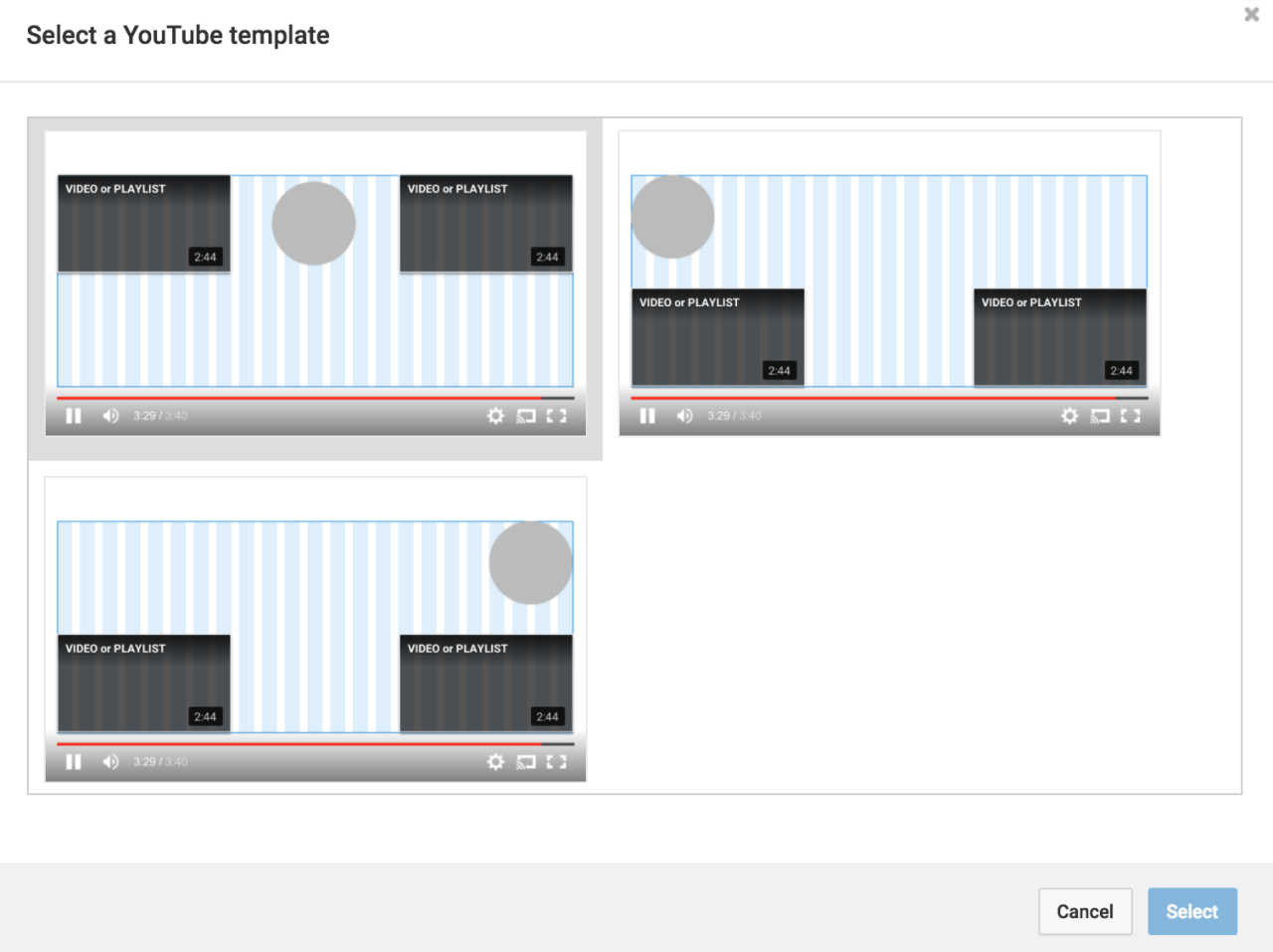
Custom end screens are powerful tools for video creators, serving as a final call to action for viewers. They appear during the last few seconds of a video, providing opportunities to promote other content, encourage subscriptions, and drive viewer engagement. Unlike generic default options, custom end screens allow for personalized branding and tailored calls to action, maximizing their effectiveness.
Primary Function of End Screens in Video Promotion
The primary function of end screens is to direct viewers toward desired actions after they’ve finished watching a video. They act as a digital ‘sales pitch’ at the very end, guiding viewers toward the next step in their interaction with the channel. This could involve watching another video, subscribing to the channel, visiting a website, or supporting the creator in some way.
End screens effectively leverage the viewer’s existing interest in the creator’s content to promote further engagement.
Benefits of Using Custom End Screens Over Default Options
Using custom end screens offers significant advantages over the default options provided by video platforms. Default end screens are often generic and lack the branding and personalization that custom screens provide. Customization allows creators to tailor the end screen to match their channel’s aesthetic and specific promotional goals.
- Enhanced Branding: Custom end screens allow for the inclusion of channel logos, branded colors, and consistent visual elements, reinforcing brand recognition.
- Targeted Promotion: Creators can choose specific videos, playlists, or external links to promote, aligning with their content strategy and viewer interests.
- Increased Click-Through Rates: Personalized calls to action and visually appealing designs are more likely to capture viewers’ attention and encourage interaction, resulting in higher click-through rates.
- Improved Audience Retention: By suggesting related videos or playlists, end screens can keep viewers engaged with the channel for longer, increasing overall watch time.
- Greater Control: Custom end screens give creators complete control over the visual elements, placement of promotional items, and the overall messaging.
Examples of How End Screens Enhance Viewer Engagement
End screens can be used in a variety of ways to enhance viewer engagement, increasing the likelihood of further interaction with the channel. They transform the end of a video from a simple conclusion into a proactive opportunity for continued engagement.
- Promoting Related Videos: An end screen could showcase two or three related videos, allowing viewers to seamlessly continue watching content they find interesting. For example, a cooking channel could suggest recipes using similar ingredients.
- Encouraging Channel Subscriptions: A prominent subscription button, often accompanied by a visual cue like an animated arrow, can prompt viewers to subscribe to the channel. Statistics show that channels with strategically placed subscription buttons in end screens see an average increase of 10-15% in subscriber rates.
- Promoting Playlists: Highlighting a playlist related to the video’s topic can encourage viewers to explore a series of videos, increasing watch time and viewer retention. A gaming channel, for instance, could promote a “Beginner’s Guide” playlist.
- Directing Viewers to External Links: End screens can link to a creator’s website, social media profiles, or merchandise store, providing additional avenues for engagement and monetization. For example, a vlogger could include a link to their Patreon page.
- Using Call-to-Actions: Adding text prompts like “Watch Next” or “Subscribe Now” can guide viewers toward the desired actions, making it easier for them to engage with the channel.
Planning Your End Screen Design
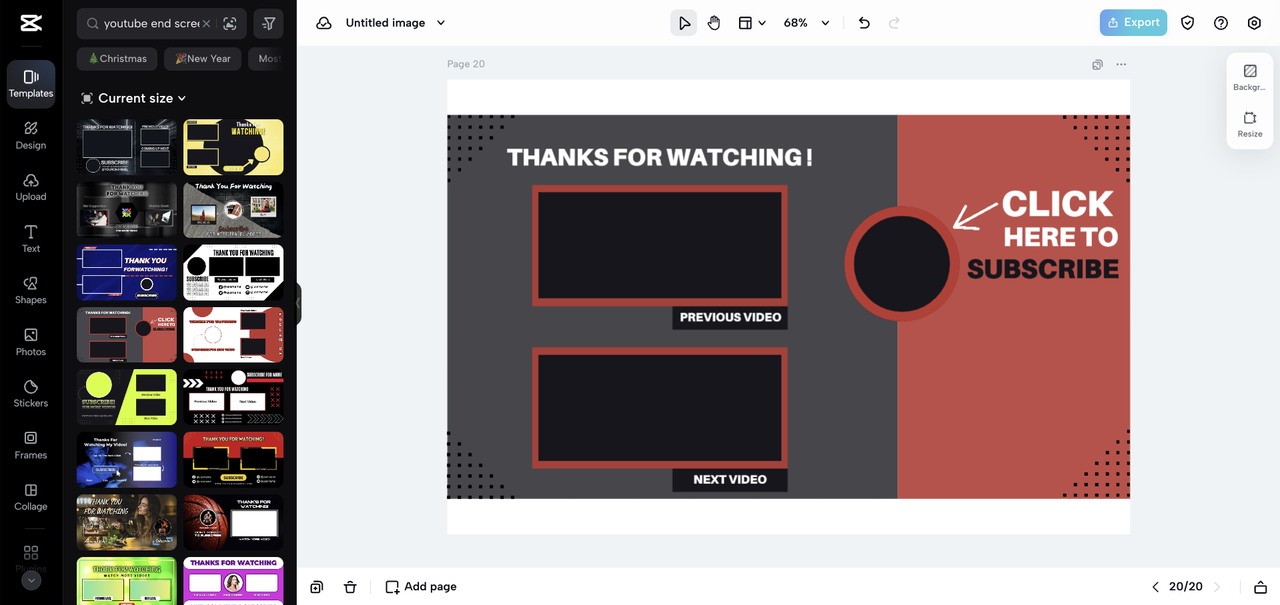
Now that you understand the basics of custom end screens, let’s move on to planning your design. A well-planned end screen is crucial for maximizing its effectiveness. This involves defining your goals, choosing the right elements, and strategically placing them for optimal viewer engagement.
Defining End Screen Goals
Before you begin designing, it’s essential to define what you want your end screen to achieve. Your goals will dictate the elements you include and how you arrange them. Common goals include:
- Increasing Subscribers: Encourage viewers to subscribe to your channel. This is a primary goal for many creators.
- Promoting Other Videos: Direct viewers to watch more of your content, increasing watch time and channel engagement.
- Driving Traffic to External Websites: If applicable, link to your website, social media profiles, or other relevant destinations.
- Encouraging Viewers to Like and Comment: Prompt viewers to interact with your content, boosting engagement metrics.
- Promoting Playlists: Showcase relevant playlists to keep viewers watching related videos.
Consider prioritizing one or two primary goals per video to avoid overwhelming viewers. For instance, you might focus on promoting a related video and encouraging subscriptions.
Identifying Key End Screen Elements
Once you know your goals, select the elements that will help you achieve them. YouTube offers several options:
- Video or Playlist: This allows you to showcase other videos or playlists on your channel. Choosing relevant content is key.
- Subscribe Button: A prominent button that allows viewers to subscribe directly from the end screen.
- Channel Link: Displays your channel icon and allows viewers to visit your channel page.
- External Link: (If eligible) Directs viewers to an external website or social media profile. This requires YouTube Partner Program eligibility.
The specific elements you choose will depend on your goals and the content of your video. For example, if your video is part of a series, promoting the next video in the series and the related playlist is a great strategy. If you have a website, include a link to it if eligible.
Determining Element Placement and Duration
Strategic placement and duration are critical for end screen effectiveness. Consider these factors:
- Placement: The placement of your elements should be visually appealing and unobtrusive. Avoid covering important parts of your video content. YouTube provides guidelines for safe zones, which you should adhere to.
- Duration: End screens can appear for a maximum of 20 seconds. The ideal duration depends on the length of your video and the time it takes to present your elements. Consider the following:
- For shorter videos (under 5 minutes), a shorter end screen duration (e.g., 10-15 seconds) may be sufficient.
- For longer videos, you can use the full 20 seconds.
- Ensure the end screen appears
-after* the most important information has been presented in your video. Don’t interrupt the flow of your content.
Experiment with different placements and durations to see what works best for your audience. YouTube Analytics provides valuable data on end screen performance, such as click-through rates for different elements. Use this data to optimize your designs over time.
Designing the Visuals: Branding and Aesthetics
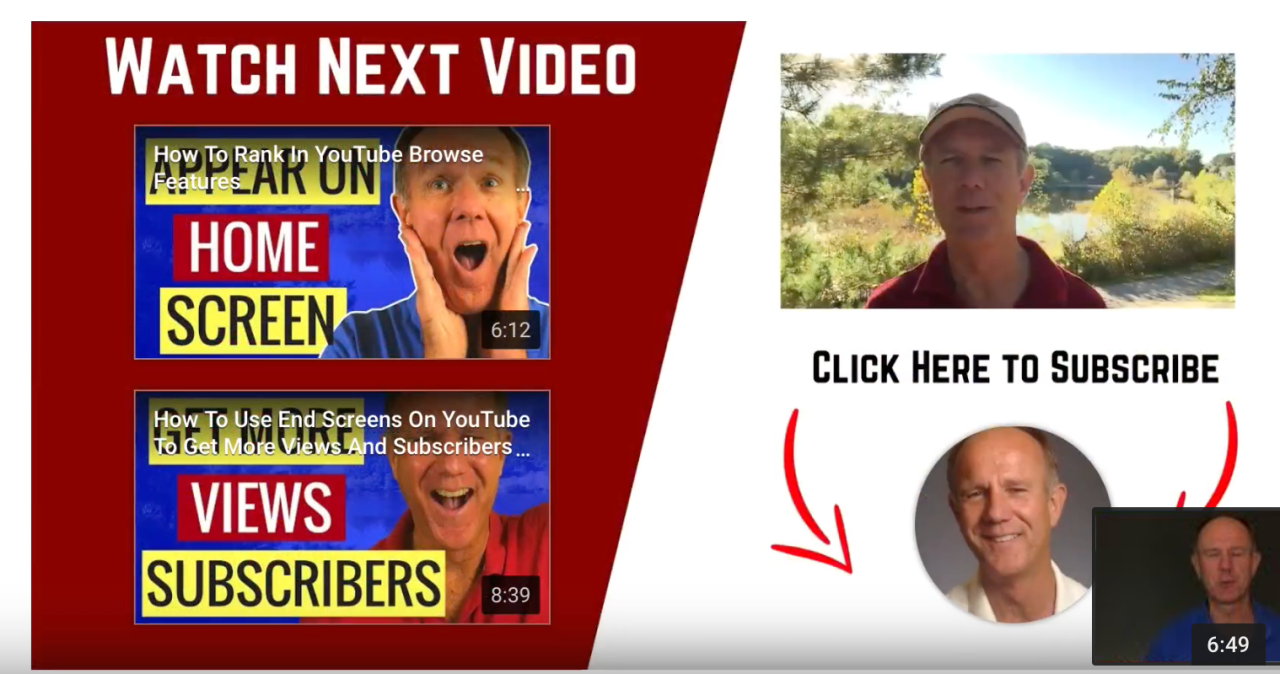
Creating visually appealing end screens is crucial for encouraging viewers to explore more of your content. Your end screen is a valuable piece of real estate; it should not only promote other videos but also reinforce your channel’s identity. This section focuses on how to integrate your branding effectively and create aesthetically pleasing designs.
Incorporating Channel Branding
Consistent branding builds recognition and trust. Viewers should immediately recognize your end screen as belonging to your channel.
- Logo Placement: Your channel logo should be prominently displayed. It serves as an immediate identifier. Place it strategically, ensuring it doesn’t obscure any call-to-actions or video previews. Consider positioning it in a corner, centered at the top, or incorporated into the overall design in a way that feels natural.
- Color Palette: Use your channel’s established color palette. This creates a cohesive look and feel, reinforcing your brand’s visual identity. If your brand uses specific colors, incorporate them into the background, text, and button designs.
- Font Selection: Stick to your channel’s fonts. Using the same fonts across all your content, including end screens, contributes to brand consistency. Select fonts that are easy to read and complement your video content’s style.
- Background Elements: If you use specific background elements in your videos (e.g., a particular pattern, texture, or graphic), consider incorporating them into your end screen design. This further strengthens brand recognition.
Choosing Colors, Fonts, and Visual Styles
The choices you make in terms of colors, fonts, and overall visual style significantly impact how your end screen is perceived.
- Color Psychology: Colors evoke specific emotions and associations. Consider the message you want to convey. For example:
- Red: Can create a sense of urgency, perfect for calls-to-action.
- Blue: Conveys trust and reliability.
- Green: Suggests growth and freshness.
- Yellow: Represents optimism and energy.
Choose colors that align with your channel’s personality and the content you create.
- Font Choice: Fonts influence readability and brand personality.
- Serif Fonts: (e.g., Times New Roman, Georgia) can convey a sense of tradition and sophistication.
- Sans-Serif Fonts: (e.g., Arial, Helvetica, Open Sans) often feel modern and clean.
- Script Fonts: (e.g., cursive fonts) can add a touch of elegance or playfulness, but use them sparingly and ensure they are highly readable.
Select fonts that are easy to read on various screen sizes and that match your channel’s tone.
- Visual Style: Your overall visual style should be consistent with your video content. If your videos are sleek and modern, your end screen should reflect that. If your content is more casual and fun, your end screen can reflect that.
Examples of Visually Appealing End Screen Designs
Here are examples of end screen designs that effectively promote content:
- Minimalist Design: A clean, uncluttered design featuring a simple background, your logo, and clear call-to-actions. This approach is effective because it doesn’t distract viewers from the video previews. The focus is on the content itself. For example, a black background with white text and your logo in the corner. Video previews could be presented with a subtle border.
- Branded Template: Create a template that uses your channel’s colors, fonts, and logo. The template could include a background graphic, a section for suggested videos, and a subscribe button. This approach provides consistency across all your videos.
- Interactive Elements: Consider incorporating interactive elements, such as animated arrows or subtle visual cues, to draw attention to the video previews and subscribe button.
- Themed Design: If your videos often focus on a particular topic or theme, create end screens that reflect that theme. For example, a cooking channel could use an end screen with a kitchen-themed background.
Adding Interactive Elements: Buttons and Links
Now that you’ve planned your end screen design and crafted your visuals, it’s time to make it interactive! This involves adding elements that viewers can click on to subscribe to your channel, watch more videos, or explore playlists. These interactive elements are crucial for driving engagement and achieving your promotional goals.
Adding Subscribe Buttons, Video Links, and Playlists
Adding interactive elements to your end screen is a straightforward process within the YouTube Studio. These elements act as direct calls to action, encouraging viewers to engage further with your content.Here’s how to add each type of element:
- Subscribe Button: This encourages viewers to subscribe to your channel directly from the end screen. To add it, select the “Subscribe” element in the end screen editor. It will automatically display your channel’s profile picture and a subscribe button.
- Video Links: These link to specific videos on your channel. You can promote your most recent upload, a best-performing video, or a video that complements the current one. Select the “Video” element and choose the specific video you want to promote from the dropdown menu.
- Playlists: Playlists group related videos together, encouraging viewers to watch more of your content in a specific series or topic. Select the “Playlist” element and choose the playlist you want to feature.
Once you’ve selected an element, you can customize its placement and timing on the end screen. Remember to place the elements strategically, considering the flow of your video and where viewers’ attention is likely to be focused.
Customizing Appearance and Behavior
Customization options allow you to tailor the look and feel of your interactive elements to match your branding and the overall aesthetic of your end screen. You can adjust the size, position, and timing of each element.
- Placement and Size: Drag and drop elements to position them where you want them on the screen. You can also resize elements to fit your design. Ensure that elements are not too small to be easily clicked on mobile devices.
- Timing: Set when each element appears and disappears during the last 20 seconds of your video. Consider when it makes the most sense to introduce each element based on your video’s content and pacing.
- Element Preview: YouTube Studio provides a preview of how the end screen will appear on different devices (desktop, mobile, etc.). Use this to ensure your elements are visible and accessible across all devices.
By carefully customizing these elements, you can create a seamless and engaging end screen experience that maximizes viewer interaction. Remember to test your end screen after making changes to ensure everything functions as expected.
Interactive Element Functions
The table below Artikels the different types of interactive elements available in YouTube end screens and their specific functions. This should help you choose the best elements to achieve your promotional goals.
| Element Type | Function | Best Use Case | Customization Options |
|---|---|---|---|
| Subscribe Button | Allows viewers to subscribe to your channel directly. | Encouraging channel growth and building a subscriber base. | Placement, size, and timing. |
| Video Link | Links to another video on your channel. | Promoting specific videos, such as recent uploads or popular content. | Placement, size, timing, and video selection. |
| Playlist | Links to a playlist of videos. | Encouraging viewers to watch a series or explore a specific topic. | Placement, size, timing, and playlist selection. |
| Channel | Promotes another YouTube channel. | Collaborating with other creators or cross-promoting content. | Placement, size, timing, and channel selection. |
Promoting Other Videos
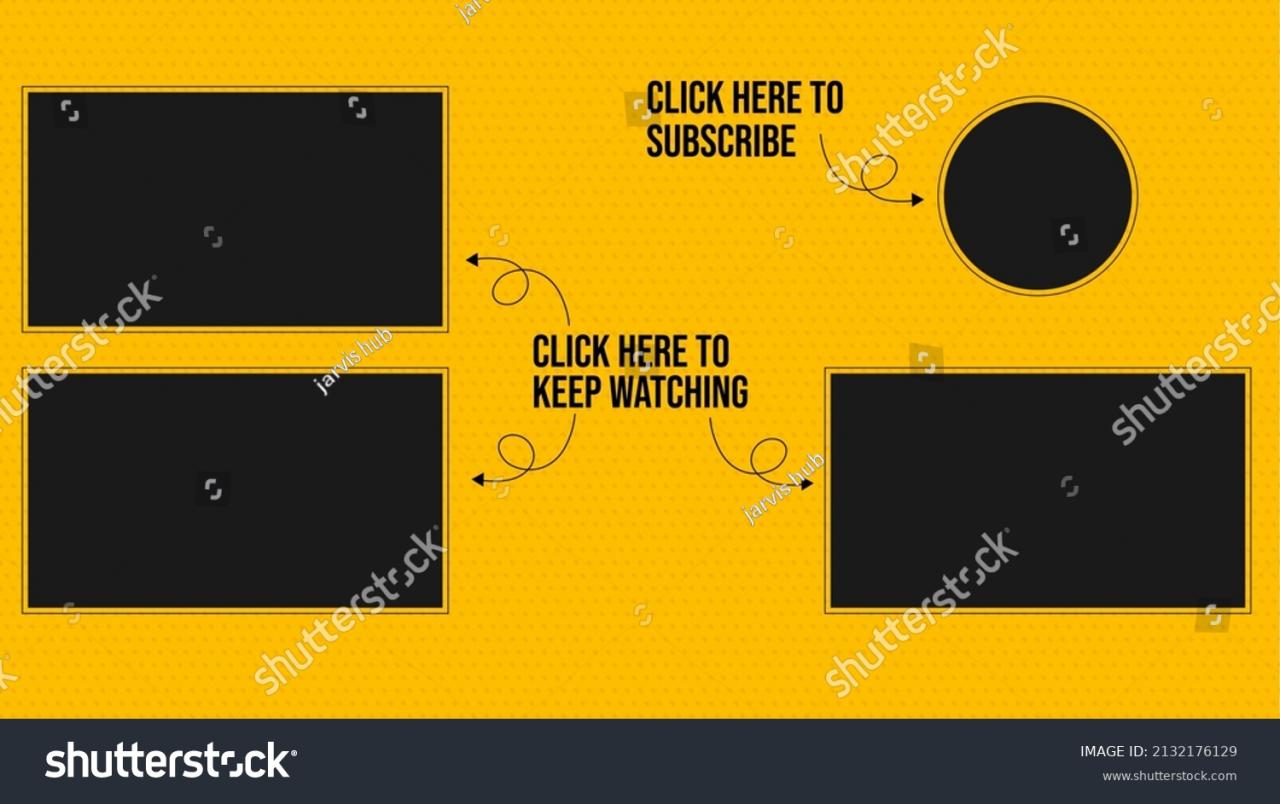
Now that you’ve designed your end screen and added interactive elements, it’s time to strategically select which videos to promote. Choosing the right videos is crucial for maximizing clicks, watch time, and ultimately, channel growth. This section provides recommendations for selecting videos and optimizing your end screen recommendations for the best results.
Selecting Videos to Promote
The videos you choose to promote on your end screen significantly impact their effectiveness. Your goal is to encourage viewers to continue watching your content. Several factors influence the likelihood of viewers clicking on a promoted video.Consider these factors:
- Relevance: Promote videos that are directly related to the content the viewer just watched. For example, if your video is about “How to Bake a Chocolate Cake,” recommend videos like “Chocolate Frosting Recipe” or “Tips for Perfect Cake Layers.” This leverages the viewer’s existing interest.
- Timeliness: If you have a series, promote the next video in the series. If your video discusses a current event, promote a related video that provides further context or analysis.
- Popularity: Feature your most popular videos. They’ve already proven their appeal and are more likely to attract clicks. Check your YouTube Analytics to identify your top-performing videos.
- Call to Action: Select videos that have a clear call to action. For instance, “Watch this video to learn…” or “Next, discover…” guide the viewer.
- Video Length: While not always the deciding factor, consider the length of the promoted video in relation to the original video. If the original video is long, promoting a shorter, related video might encourage viewers to watch another one immediately.
Optimizing Video Recommendations
To maximize the impact of your video recommendations, implement these strategies:
- Analyze YouTube Analytics: Regularly review your YouTube Analytics to understand viewer behavior. Identify which videos are performing well on your end screens (click-through rates, watch time, etc.). This data will inform your future video selection.
- Use Video Cards: In addition to end screens, use video cards throughout your videos to promote related content. These cards appear at any time during the video and are another opportunity to engage viewers.
- Create Playlists: Curate playlists of related videos. This allows viewers to easily binge-watch your content. Promote the playlist on your end screen.
- A/B Test Recommendations: Experiment with different video recommendations on your end screens. Try promoting different types of videos (related, popular, a mix) and monitor which combinations yield the best results.
- Align with Channel Goals: Make sure your recommendations align with your overall channel goals. If you’re trying to increase watch time, promote longer videos. If you’re focused on subscriber growth, promote videos that encourage viewers to subscribe.
- Consider Seasonality: If your content is related to holidays or specific times of the year, adjust your recommendations accordingly. Promote relevant videos based on the current season or time of year. For instance, in December, you might promote videos about holiday gift ideas.
Best Practices for End Screen Placement and Timing
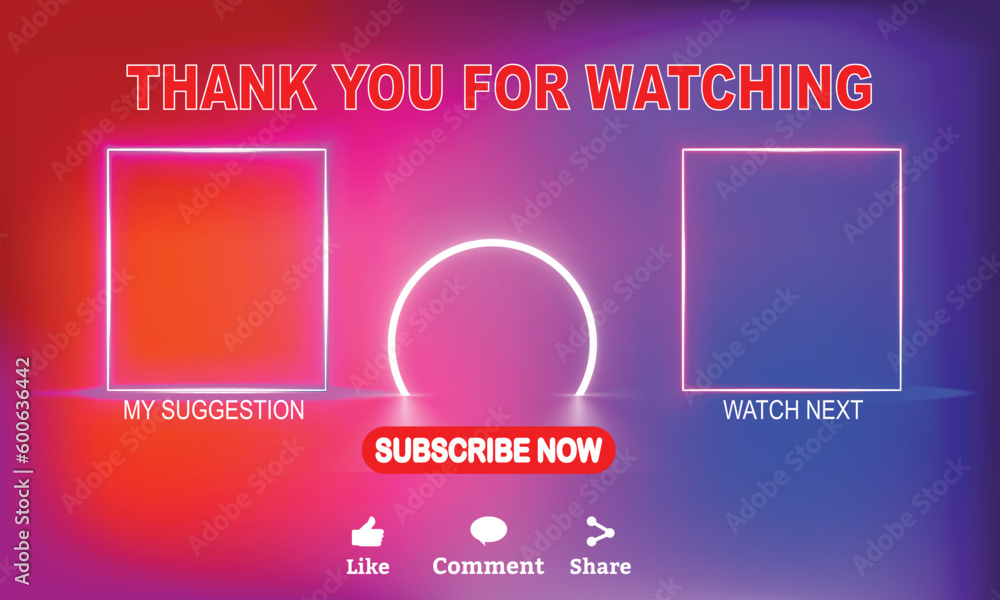
Strategic placement and timing are crucial for the effectiveness of your end screens. A well-timed end screen can significantly boost engagement by encouraging viewers to watch more of your content. Conversely, poor placement can lead to viewers missing the call to action entirely. This section Artikels the ideal timing, common pitfalls, and effective strategies for end screen implementation.
Optimal End Screen Timing
Determining the precise moment to introduce your end screen is a balancing act. You want to give viewers ample time to engage without disrupting the viewing experience.* Target Audience and Video Content: The ideal timing depends on your video’s content and the typical viewing habits of your audience. Shorter videos might benefit from earlier end screen appearances, while longer videos allow for a more gradual introduction.* Viewer Engagement Analysis: Use YouTube Analytics to understand when viewers typically drop off.
This information helps you strategically position your end screen to maximize visibility before the viewer exits.* Recommended Placement: Generally, aim to display your end screen for the last 5-20 seconds of your video. This timeframe provides enough time for viewers to notice the calls to action without feeling rushed.* Considerations for Different Video Lengths:
- Short Videos (under 3 minutes): Introduce the end screen around the 15-second mark from the end.
- Medium Videos (3-10 minutes): Aim for 15-20 seconds before the end.
- Longer Videos (over 10 minutes): You can consider a slightly earlier placement, around 20 seconds before the end, to ensure viewers have enough time to interact.
Common Mistakes in End Screen Placement
Avoiding common errors is essential for a successful end screen strategy.* Displaying the End Screen Too Early: This can be disruptive, leading viewers to click away before the video concludes.
Placing the End Screen Over Important Content
Ensure the end screen doesn’t obscure crucial visuals or audio, which can frustrate viewers.
Ignoring Viewer Retention Data
Failing to analyze viewer retention patterns can lead to inefficient end screen placement, reducing its impact.
Not Adjusting Based on Video Type
Using the same timing for all videos, regardless of length or content, is ineffective.
Effective End Screen Placement Strategies
Implementing strategic placement techniques can enhance end screen effectiveness.* Teasing the End Screen: Briefly mention the end screen at the end of your video to prepare viewers for its appearance. This can be as simple as, “Don’t forget to check out the video on the screen at the end!”
Using Visual Cues
Incorporate subtle visual cues, such as a slight fade or a brief transition, to signal the end screen’s arrival. This prepares viewers for the change.
Consistent Placement
While adapting to content, strive for consistency across your videos to build viewer familiarity with your end screen strategy. This predictability enhances user experience.
A/B Testing
Experiment with different end screen timings and designs to determine what resonates best with your audience.
Analyzing Analytics
Regularly review YouTube Analytics to assess end screen performance. Track metrics such as click-through rates and average view duration to refine your strategy.
Creating End Screens in Your Video Editor
Now that you’ve planned your end screen design and gathered your assets, it’s time to bring your vision to life! This section will guide you through the process of creating end screens directly within your video editor. We’ll use a common example, and while the specific steps may vary slightly depending on your chosen software (like Adobe Premiere Pro, Final Cut Pro, or DaVinci Resolve), the underlying principles remain the same.
We’ll focus on the general workflow, and provide instructions based on a hypothetical, yet practical, video editor.
Adding Elements, Customizing Appearance, and Setting Timing
The process of creating end screens in your video editor typically involves layering visual elements, adjusting their appearance, and precisely controlling their timing. You’ll be working with the video editor’s timeline, where you’ll add and arrange elements like video previews, subscribe buttons, and social media links. Each element’s properties, such as size, position, and animation, can be customized. Setting the correct timing is crucial for ensuring your end screen appears at the right moment and remains visible for an appropriate duration.Here’s a numbered list detailing the procedure to create a custom end screen, using a hypothetical video editor called “VideoSpark” as an example:
- Import Your Assets: Open your project in VideoSpark and import all the necessary elements for your end screen. This includes your video previews (which can be static images or small video clips), your subscribe button graphic, and any social media icons or logos. You can typically import these files through a “File” > “Import” menu or by dragging and dropping them directly into the project panel.
- Add Elements to the Timeline: Drag the imported assets onto the timeline. Start by placing your main video clip, then add the end screen elements on top of it. The end screen elements should be placed at the end of the main video, overlapping the final seconds.
- Position and Size Elements: Select each element on the timeline and use the editing controls to adjust its position and size. In VideoSpark, you’ll likely find these controls in a “Transform” panel or within the “Effects Control” panel. Position the video previews in the desired locations (e.g., two videos side-by-side), place the subscribe button in a prominent spot, and arrange any social media links or branding elements.
- Customize Appearance: Modify the appearance of your elements. This might involve adjusting the opacity, adding drop shadows, or applying other visual effects. For example, you could add a subtle glow effect to your subscribe button to make it more eye-catching. The specific customization options will vary depending on the element and the capabilities of VideoSpark.
- Add Interactive Elements (if supported): If VideoSpark supports interactive elements (like clickable links or buttons), add them now. You might need to create these elements separately (e.g., in a graphics editor) and then import them. If not, then skip this step. Link the buttons or other elements to the relevant destinations (other videos, your channel, social media).
- Set Timing and Duration: Carefully set the timing of each element. Determine when each element appears on screen and for how long it remains visible. For example, you might want the video previews to fade in a few seconds before the end of the video and remain visible for 10-20 seconds. Adjust the in and out points of each element on the timeline to control its duration.
- Add Animations (Optional): Consider adding simple animations to your elements to make the end screen more engaging. VideoSpark might offer pre-built animation presets or allow you to create custom animations using keyframes. For instance, you could have the video previews slide in from the side or have the subscribe button scale up slightly.
- Preview and Refine: Playback your video to preview the end screen. Make any necessary adjustments to the positioning, timing, appearance, or animations. Iterate until you’re satisfied with the final result.
- Export Your Video: Once you’re happy with your end screen, export the final video. Make sure to export it in a format that is compatible with your video-sharing platform (e.g., YouTube).
Remember that the exact steps may vary slightly depending on your video editor, but these steps provide a solid framework for creating effective end screens.
Troubleshooting Common End Screen Issues
End screens, while powerful tools for engagement and promotion, can sometimes present challenges. Understanding common problems and how to address them is crucial for maximizing their effectiveness. This section Artikels frequent issues encountered with end screens and provides practical solutions.
Display Issues and Troubleshooting
End screen elements might not always display correctly, which can frustrate viewers and diminish your promotional efforts. Here’s how to resolve display problems:
- Incorrect Placement or Cropping: Ensure the end screen elements are positioned correctly and don’t overlap with the video content or crucial on-screen elements. Double-check that the video aspect ratio matches the editor’s settings. Some video editors, and YouTube itself, may crop elements if the aspect ratio isn’t correctly matched. For example, if your video is 16:9 and your end screen elements are designed for 4:3, they might be cropped.
- Resolution Mismatches: Verify that the end screen elements’ resolution is compatible with your video’s resolution. Low-resolution elements will appear blurry, while high-resolution elements might not render properly. For example, a 1080p video should ideally use end screen elements designed for 1080p or higher resolution.
- Browser or Device Compatibility: Test your end screen on various browsers and devices (desktops, tablets, smartphones). Some older browsers or devices might have rendering issues. YouTube generally handles this well, but it’s still good practice to check.
- Transparency Issues: Ensure any transparent elements in your end screen are properly saved and supported by the video editor and YouTube. Certain video editors may not handle transparency correctly, leading to unwanted backgrounds.
Functionality Problems and Solutions
Problems can also arise with the interactive elements of your end screen, preventing viewers from engaging as intended. Here’s a guide to resolving functionality problems:
- Non-Clickable Elements: Confirm that the interactive elements (subscribe buttons, links to other videos) are correctly configured and clickable. Sometimes, the elements may be placed incorrectly, or the video editor may not have properly encoded the interactivity.
- Incorrect Links or Destination Errors: Double-check all links to ensure they direct viewers to the intended destinations. Broken links are a common source of frustration.
- Visibility and Timing: Ensure end screen elements are visible for a sufficient duration (at least 5-20 seconds) to allow viewers to interact with them. Also, confirm they appear at the end of the video and not prematurely.
- Mobile Device Display Issues: Test your end screen on mobile devices to ensure all elements are visible and functional. Mobile displays can sometimes truncate or reposition elements.
Visibility Challenges and Remedies
Even if your end screen functions correctly, it might not be seen by viewers. Addressing visibility issues is essential for maximizing engagement.
- Video Length Restrictions: End screens are only available on videos longer than 25 seconds. Shorter videos will not display end screens. Ensure your videos meet this requirement.
- Content Restrictions: Certain types of content, such as videos for kids, may have limitations on end screen functionality. Familiarize yourself with YouTube’s policies.
- Ad Blockers: Ad blockers can sometimes interfere with end screen display. While you have limited control over this, consider the impact on your audience.
- Viewer Behavior: Viewers may skip to the end of your video or close the video before the end screen appears. Optimize the placement of the end screen elements and consider adding a brief call to action near the end of the video to encourage viewers to stay until the end.
Measuring the Effectiveness of Your End Screens
Tracking the performance of your end screens is crucial to understanding what works and what doesn’t. Analyzing the data allows you to optimize your designs and maximize the click-through rates, leading to more views on your other videos and ultimately, channel growth. This section details how to use video analytics to evaluate your end screen performance and make informed improvements.
Tracking Performance with Video Analytics
To effectively measure your end screen performance, you’ll need to use your video analytics platform. YouTube Analytics, for example, provides comprehensive data on how viewers interact with your end screens.
- Accessing YouTube Analytics: Navigate to YouTube Studio, select “Analytics” from the left-hand menu, and then choose “End screens.” This section specifically focuses on the performance of your end screen elements.
- Filtering and Customization: You can filter data by video, date range, and other criteria to analyze specific campaigns or periods. This allows for a granular view of performance.
- Understanding the Data: YouTube Analytics presents several key metrics that provide insight into the effectiveness of your end screens. These metrics are essential for making informed decisions.
Key Metrics to Monitor
Several metrics are essential for evaluating the success of your end screen designs. Analyzing these metrics will help you understand viewer behavior and identify areas for improvement.
- End Screen Element Click Rate: This is the percentage of viewers who clicked on a specific element (video, playlist, subscribe button, or external link) on your end screen. A higher click rate indicates a more effective design.
- End Screen Element Impressions: This metric shows the number of times an end screen element was displayed to viewers. It’s important to know how many times your end screen was shown, which can influence click-through rates.
- End Screen Element Clicks: This is the actual number of clicks your end screen elements received. This is a crucial metric, as it directly reflects viewer engagement.
- Average Duration of Element Display: This metric reveals how long each end screen element was visible to the viewer. Longer display times suggest the element is capturing attention.
- Overall End Screen Engagement: This is a broader metric that looks at the overall impact of your end screens on your channel, including views and watch time.
Interpreting Data and Making Improvements
Analyzing the data requires more than just looking at the numbers; it’s about understanding what the numbers mean and using them to make improvements. Here’s how to interpret the data and make effective changes to your end screen designs:
- Low Click-Through Rates: If an element’s click-through rate is low, it suggests that viewers aren’t engaging with it. Consider the following:
- Element Placement: Experiment with the placement of elements. For example, placing a “subscribe” button near a popular video can increase click-through rates.
- Element Size and Design: Ensure elements are large enough and visually appealing. Using clear calls to action and contrasting colors can help.
- Relevance: Make sure the recommended videos are relevant to the current video’s content. A mismatched recommendation can confuse viewers.
- High Click-Through Rates: If an element’s click-through rate is high, you’re doing something right.
- Duplicate Success: Try replicating successful designs in other videos.
- Further Optimization: Even with high click-through rates, continue to test and refine your designs.
- Analyzing Display Time: The average duration of element display provides insights into how long viewers are paying attention to the end screen.
- Short Display Time: A short display time could mean viewers are quickly exiting the video. Try making the end screen more engaging, perhaps with animations or more visually appealing elements.
- Long Display Time: A long display time suggests viewers are interested. Consider what else you can do to leverage this attention, such as promoting more videos or including a call to action.
- Testing and Iteration: Continuous testing is vital for optimizing your end screens.
- A/B Testing: Create different versions of your end screens (e.g., different video recommendations, layouts, or calls to action) and test them to see which performs best.
- Track Results: Consistently monitor the results of your tests to see which designs are most effective.
Examples of Successful End Screens
Learning from successful end screen examples can significantly improve your own. By analyzing how popular channels implement these elements, you can gain valuable insights into effective design, strategic placement, and viewer engagement. These examples showcase a variety of approaches, allowing you to tailor your end screens to your specific content and audience.
Channel Examples and Their End Screen Strategies
Analyzing successful end screens involves understanding the design choices and strategies that make them effective. We’ll explore several examples, highlighting key elements and their impact on viewer behavior.
Example 1: MrBeastMrBeast’s end screens are often characterized by their simplicity and clear call-to-actions. The design focuses on promoting relevant videos and encouraging channel subscriptions.
- Promoted Videos: MrBeast usually features two recommended videos, carefully selected to align with the current video’s theme or appeal to a broader audience. These videos are displayed prominently, with clear thumbnails and titles.
- Subscribe Button: A large, easy-to-click subscribe button is consistently included, often placed strategically to encourage viewers to subscribe after watching.
- Branding: The end screen incorporates MrBeast’s branding elements, such as his logo and color scheme, maintaining a consistent visual identity.
- Placement and Timing: The end screen appears towards the end of the video, allowing viewers to fully engage with the content before being prompted to take action.
Example 2: PewDiePiePewDiePie’s end screens are known for their creative and engaging design, often incorporating elements that reflect the video’s theme and his personality.
- Video Recommendations: PewDiePie utilizes video recommendations to promote both recent uploads and older videos that might be relevant to the current content.
- Playlist Promotion: Playlists are frequently featured to encourage viewers to watch a series of related videos.
- Interactive Elements: PewDiePie may incorporate animated elements or custom graphics to enhance visual appeal and viewer engagement.
- Consistency: The end screens often maintain a consistent style, recognizable to his audience, while still adapting to the video’s theme.
Example 3: Marques Brownlee (MKBHD)MKBHD’s end screens are clean, professional, and highly effective in directing viewers towards related content.
- Video Recommendations: Two or three videos are typically promoted, often featuring reviews or tutorials related to the current video’s topic.
- Subscribe Button: A subscribe button is prominently displayed, encouraging viewers to stay connected with the channel.
- Clean Design: The design is minimalist, with a focus on clear calls-to-action and easy-to-read text.
- Consistency and Branding: The end screens maintain a consistent look and feel, reflecting MKBHD’s brand identity.
Example 4: Food Network KitchenFood Network Kitchen uses end screens to drive viewers to their website and other videos, with a focus on recipes and cooking tips.
- Website Link: A link to the Food Network Kitchen website is included, encouraging viewers to explore additional content and resources.
- Recipe Videos: Recipe videos are frequently promoted, often featuring the same chefs or dishes from the current video.
- Playlist Promotion: Playlists that group related recipes or cooking techniques are promoted.
- Visual Appeal: High-quality images and videos of food are used to entice viewers.
End of Discussion
In conclusion, mastering custom end screens is a powerful strategy for video promotion. By understanding the key elements of design, strategic placement, and performance tracking, you can significantly enhance your channel’s growth. Implement these techniques, analyze your results, and watch your viewer engagement and video views soar. Now, go forth and create end screens that convert!